> ## Documentation Index
> Fetch the complete documentation index at: https://discountkit.app/llms.txt
> Use this file to discover all available pages before exploring further.
# Gift with purchase
> Offer free gifts when customers meet purchase requirements
## Setup
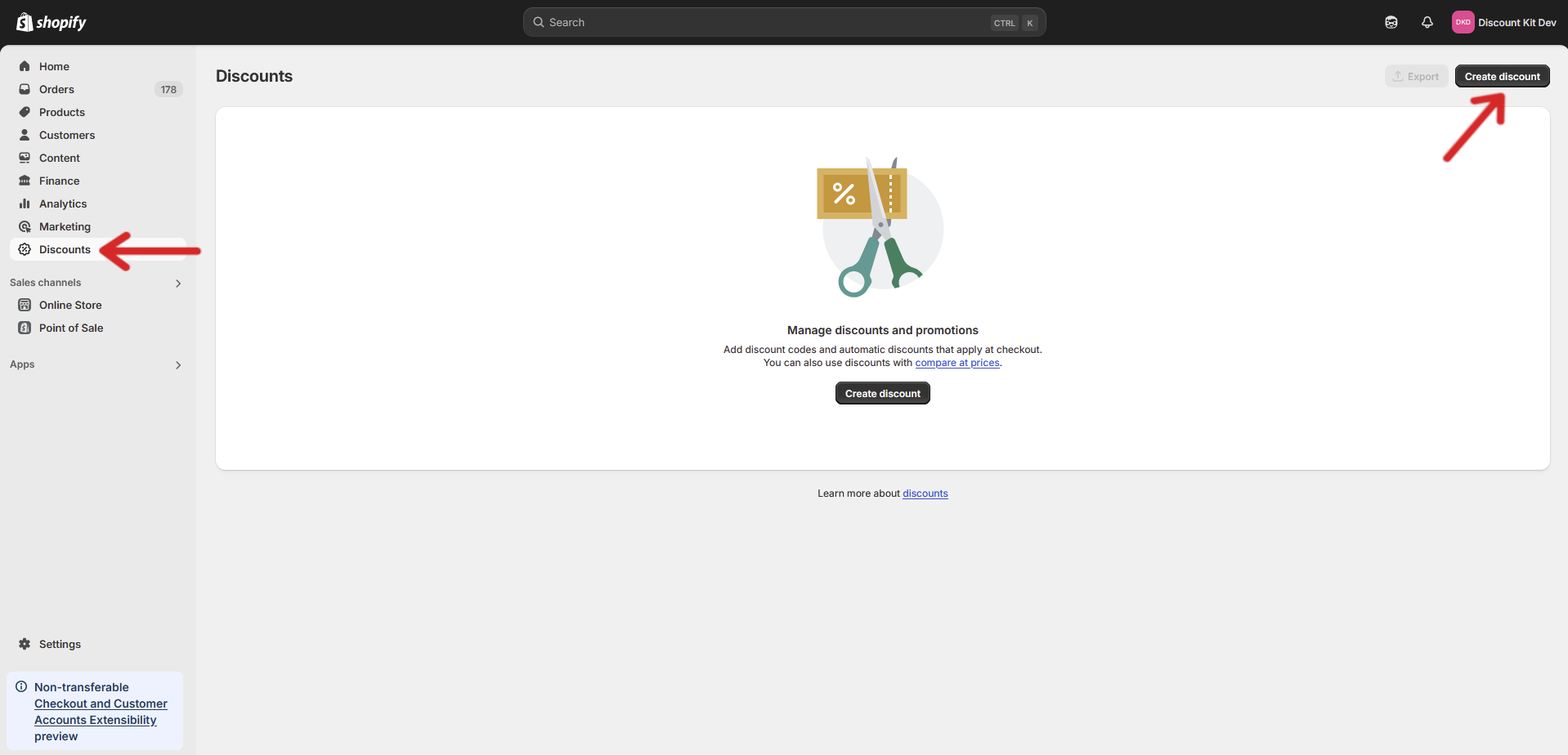
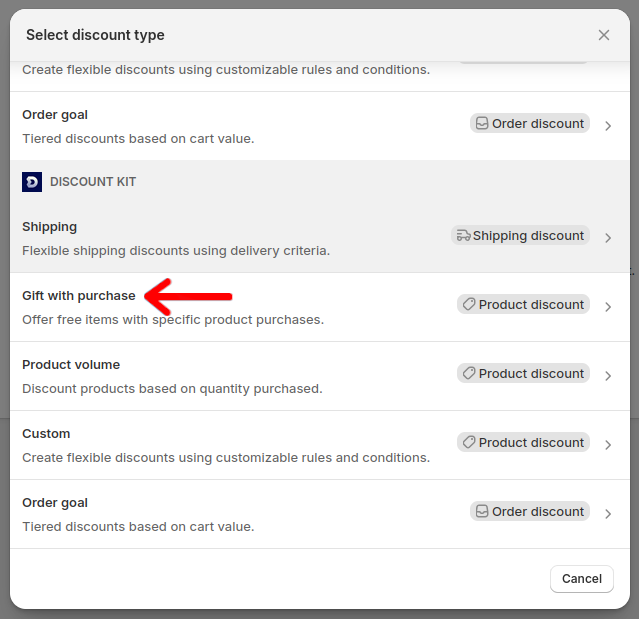
 ## Settings
#### Condition type
Determines the type of cart condition that must be met before the discount will apply. The options are either a set quantity of products or a monetary amount.
#### Value type
Determines the type of discount that will be applied. The options are either a fixed amount off or a percentage.
#### Applies to
Determines whether the discount will apply to all products, a selection of products, or a collection.
#### Purchase Type
Determines if the discount applies to only subscription products, one-time purchase products, or both.
#### Exclude products with compare-at prices
This option will exclude products with compare-at prices from tier prerequisite totals. This is particularly useful when targeting a collection with the discount.
#### Group by
Determines how the discount will group the products before applying tier rules. Mix-and-match means that all products will count together toward each tier. Product and product variant options will apply tiers to each product or variant separately, allowing for products to have different discounts applied.
### Tiers
#### Title override
Overrides the discount title when the discount is displayed in the cart or checkout. Optional.
#### Minimum quantity/minimum subtotal
Determines the number of products, or total product value, required to apply the discount.
#### Percentage off/Fixed amount off
Determines the discount value that will be applied.
## Integrations
#### Automatic Gifts
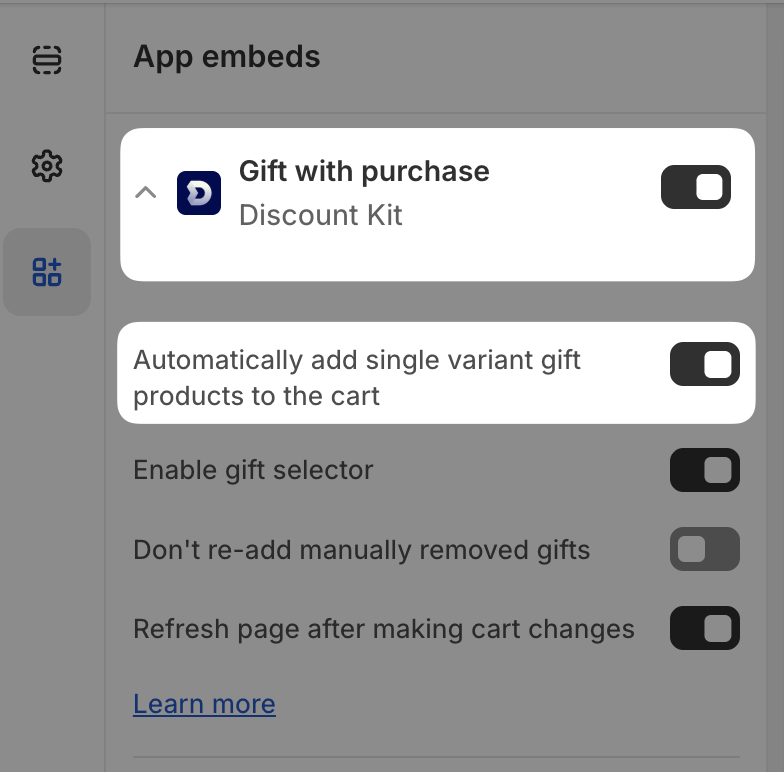
Open your store's **theme editor**. Select **App embeds** in the left hand panel and then enable **Gift with purchase** from Discount Kit. Open up **Gift with purchase**'s settings using the drop-down arrow and select **Automatically add single variant gift products to the cart**.
**Page Refresh Option:**
In most cases, it's best to enable **Refresh page after making cart changes** so that customer's carts do not become out of sync with the store's theme.
However, if you prefer to handle cart updates yourself (for a smoother user experience), you can disable this option.
**Important:** If you disable page refresh, you MUST manually update/refresh the cart UI in your theme code. Failing to do so can cause the cart to get out of sync, leading to incorrect discount calculations and other issues.
**Manually Refreshing the Cart:**
If you disable page refresh, use this code to update your cart after gift adjustments:
```javascript theme={null}
document.addEventListener('discount_kit:cart_changed', () => {
// Update/re-render your theme's ajax cart here
});
```
Once enabled, once a customer has unlocked a Gift with Purchase discount tier that contains a single product variant it will automatically be added to the cart. For gift tiers that contain multiple variants and the customer needs to choose from among them see instructions for enabling the Gift Selector below.
## Settings
#### Condition type
Determines the type of cart condition that must be met before the discount will apply. The options are either a set quantity of products or a monetary amount.
#### Value type
Determines the type of discount that will be applied. The options are either a fixed amount off or a percentage.
#### Applies to
Determines whether the discount will apply to all products, a selection of products, or a collection.
#### Purchase Type
Determines if the discount applies to only subscription products, one-time purchase products, or both.
#### Exclude products with compare-at prices
This option will exclude products with compare-at prices from tier prerequisite totals. This is particularly useful when targeting a collection with the discount.
#### Group by
Determines how the discount will group the products before applying tier rules. Mix-and-match means that all products will count together toward each tier. Product and product variant options will apply tiers to each product or variant separately, allowing for products to have different discounts applied.
### Tiers
#### Title override
Overrides the discount title when the discount is displayed in the cart or checkout. Optional.
#### Minimum quantity/minimum subtotal
Determines the number of products, or total product value, required to apply the discount.
#### Percentage off/Fixed amount off
Determines the discount value that will be applied.
## Integrations
#### Automatic Gifts
Open your store's **theme editor**. Select **App embeds** in the left hand panel and then enable **Gift with purchase** from Discount Kit. Open up **Gift with purchase**'s settings using the drop-down arrow and select **Automatically add single variant gift products to the cart**.
**Page Refresh Option:**
In most cases, it's best to enable **Refresh page after making cart changes** so that customer's carts do not become out of sync with the store's theme.
However, if you prefer to handle cart updates yourself (for a smoother user experience), you can disable this option.
**Important:** If you disable page refresh, you MUST manually update/refresh the cart UI in your theme code. Failing to do so can cause the cart to get out of sync, leading to incorrect discount calculations and other issues.
**Manually Refreshing the Cart:**
If you disable page refresh, use this code to update your cart after gift adjustments:
```javascript theme={null}
document.addEventListener('discount_kit:cart_changed', () => {
// Update/re-render your theme's ajax cart here
});
```
Once enabled, once a customer has unlocked a Gift with Purchase discount tier that contains a single product variant it will automatically be added to the cart. For gift tiers that contain multiple variants and the customer needs to choose from among them see instructions for enabling the Gift Selector below.
 **Allowing shoppers to remove gifts:**
You can allow shoppers to manually remove automatically added gifts without them being re-added to the cart. This is useful when a shopper doesn't want a particular gift, even though they've qualified for it.
To enable this feature, open the **Gift with purchase** settings in your theme editor's App embeds section and enable **Don't re-add manually removed gifts**.
**Allowing shoppers to remove gifts:**
You can allow shoppers to manually remove automatically added gifts without them being re-added to the cart. This is useful when a shopper doesn't want a particular gift, even though they've qualified for it.
To enable this feature, open the **Gift with purchase** settings in your theme editor's App embeds section and enable **Don't re-add manually removed gifts**.
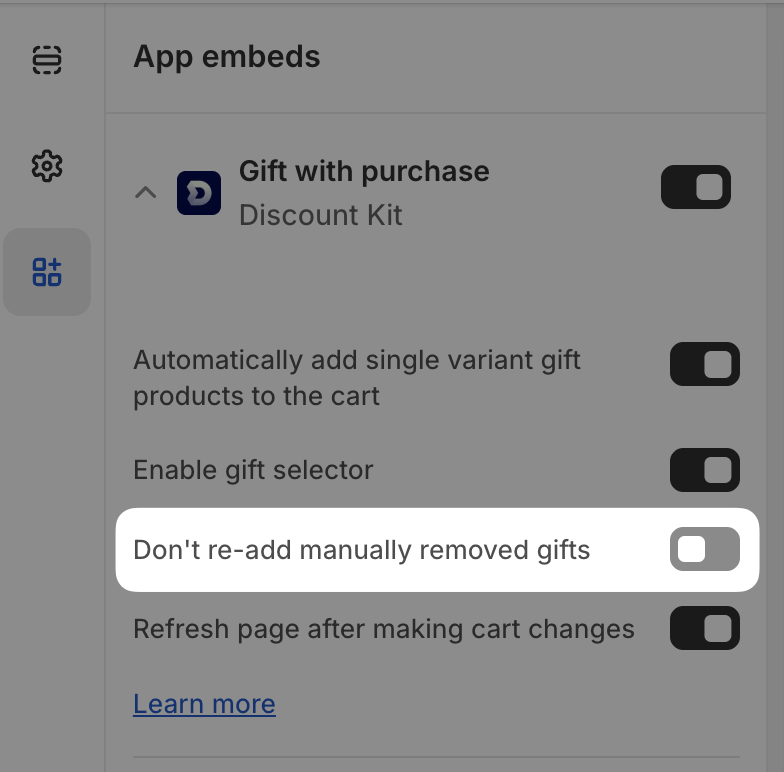 With this setting enabled, if a shopper manually removes an automatically added gift from their cart, it will not be re-added again.
#### Gift Selector
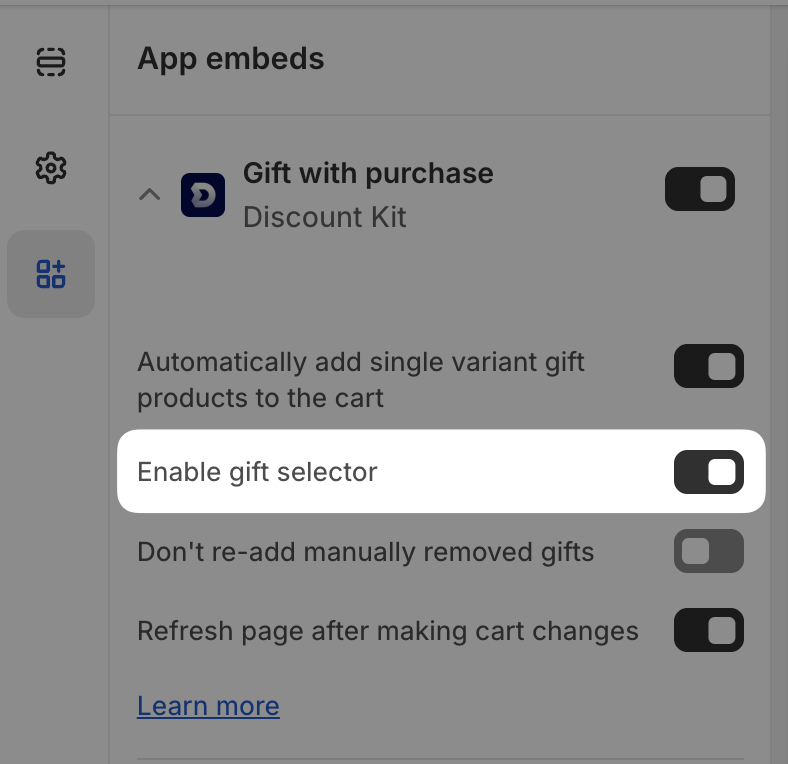
To let customers choose their gift when multiple variants are available, enable **Enable gift selector** in the **Gift with purchase** settings. You can customize the gift selector's appearance using the styling options below this setting.
With this setting enabled, if a shopper manually removes an automatically added gift from their cart, it will not be re-added again.
#### Gift Selector
To let customers choose their gift when multiple variants are available, enable **Enable gift selector** in the **Gift with purchase** settings. You can customize the gift selector's appearance using the styling options below this setting.
 #### Custom Integration
For developers building custom gift experiences, Discount Kit dispatches a browser event containing gift adjustment data:
**Event Name:** `discount_kit:gift_adjustments`
This event provides a list of gift products to add to, and cart lines to remove from, the cart as a result of changes to the cart.
**Event Structure:**
```typescript theme={null}
{
add: {
discountId: string,
discountTitle: string,
quantity: number,
options: {
id: string,
image: string,
priceRange: {
min: number,
max: number
},
title: string,
variants: {
available: boolean,
id: string,
title: string,
image: string | null,
price: number
}[]
}[]
},
remove: {
[lineKey]: 0
}
}
```
**Important:** For the `remove` property to work correctly, you must add a line item property to gifted products:
* Key: `_dk_gift`
* Value: ``
The `remove` property in the event will include any cart line with the `_dk_gift` property that does not contain an active discount.
**Example Usage:**
```javascript theme={null}
document.addEventListener('discount_kit:gift_adjustments', (event) => {
const { add, remove } = event.detail;
// Add gifts to cart
if (add.options.length > 0) {
// Handle gift selection/addition
}
// Remove old gifts
Object.keys(remove).forEach(lineKey => {
// Remove cart line by key
});
});
```
#### Custom Integration
For developers building custom gift experiences, Discount Kit dispatches a browser event containing gift adjustment data:
**Event Name:** `discount_kit:gift_adjustments`
This event provides a list of gift products to add to, and cart lines to remove from, the cart as a result of changes to the cart.
**Event Structure:**
```typescript theme={null}
{
add: {
discountId: string,
discountTitle: string,
quantity: number,
options: {
id: string,
image: string,
priceRange: {
min: number,
max: number
},
title: string,
variants: {
available: boolean,
id: string,
title: string,
image: string | null,
price: number
}[]
}[]
},
remove: {
[lineKey]: 0
}
}
```
**Important:** For the `remove` property to work correctly, you must add a line item property to gifted products:
* Key: `_dk_gift`
* Value: ``
The `remove` property in the event will include any cart line with the `_dk_gift` property that does not contain an active discount.
**Example Usage:**
```javascript theme={null}
document.addEventListener('discount_kit:gift_adjustments', (event) => {
const { add, remove } = event.detail;
// Add gifts to cart
if (add.options.length > 0) {
// Handle gift selection/addition
}
// Remove old gifts
Object.keys(remove).forEach(lineKey => {
// Remove cart line by key
});
});
```