> ## Documentation Index
> Fetch the complete documentation index at: https://discountkit.app/llms.txt
> Use this file to discover all available pages before exploring further.
# Product volume
> Offer tiered discounts based on quantity purchased
## Setup
 ## Settings
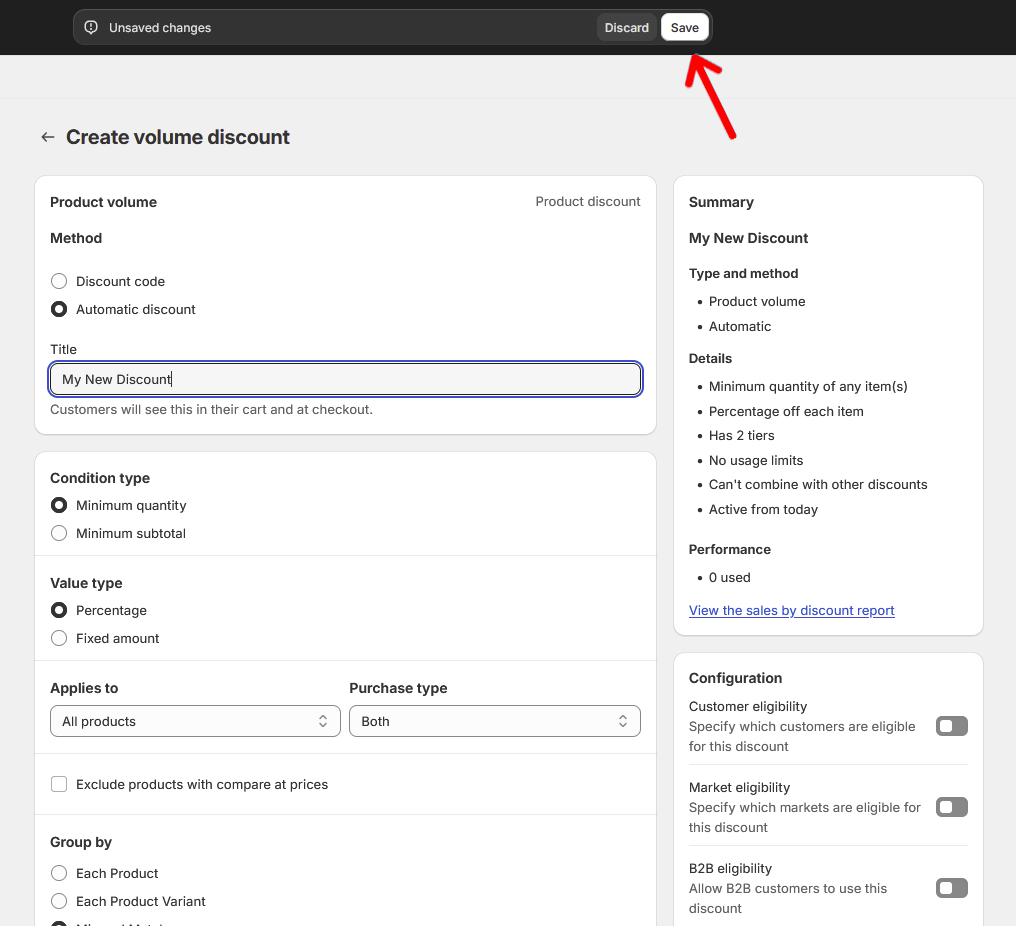
#### Condition type
Determines the type of cart condition that must be met before the discount will apply. The options are either a set quantity of products or a monetary amount.
#### Value type
Determines the type of discount that will be applied. The options are either a fixed amount off or a percentage.
#### Applies to
Determines whether the discount will apply to all products, a selection of products, or a collection.
#### Purchase Type
Determines if the discount applies to only subscription products, one-time purchase products, or both.
#### Exclude products with compare-at prices
This option will exclude products with compare-at prices from tier prerequisite totals. This is particularly useful when targeting a collection with the discount.
#### Group by
Determines how the discount will group the products before applying tier rules. Mix-and-match means that all products will count together toward each tier. Product and product variant options will apply tiers to each product or variant separately, allowing for products to have different discounts applied.
### Tiers
#### Title override
Overrides the discount title when the discount is displayed in the cart or checkout. Optional.
#### Minimum quantity/minimum subtotal
Determines the number of products, or total product value, required to apply the discount.
#### Percentage off/Fixed amount off
Determines the discount value that will be applied.
## Integrations
#### Product Volume Table
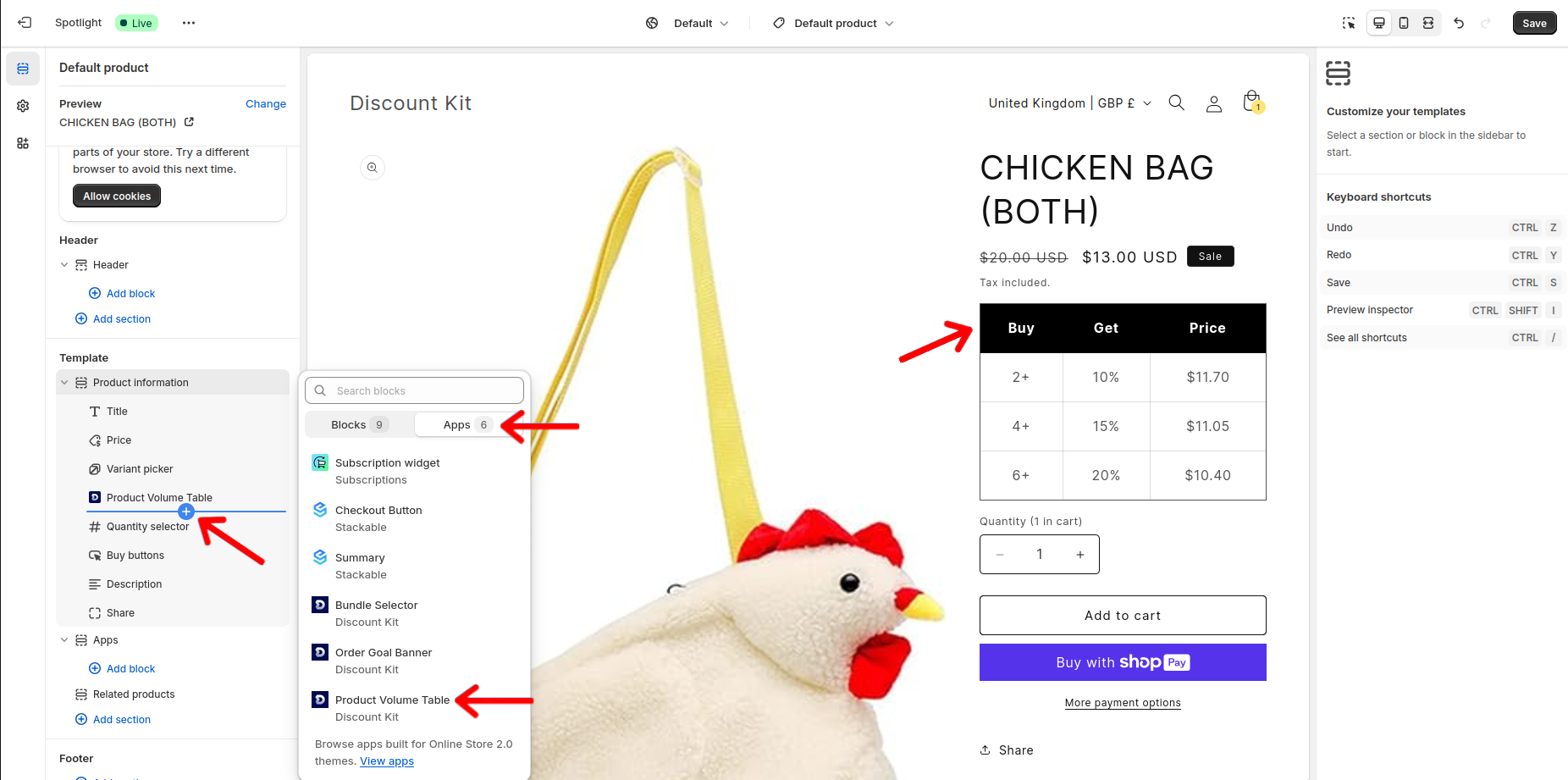
Head to your **theme editor** and then to the **product** page. On the left-hand side, click **Add block** to add the **Product Volume Table**.
## Settings
#### Condition type
Determines the type of cart condition that must be met before the discount will apply. The options are either a set quantity of products or a monetary amount.
#### Value type
Determines the type of discount that will be applied. The options are either a fixed amount off or a percentage.
#### Applies to
Determines whether the discount will apply to all products, a selection of products, or a collection.
#### Purchase Type
Determines if the discount applies to only subscription products, one-time purchase products, or both.
#### Exclude products with compare-at prices
This option will exclude products with compare-at prices from tier prerequisite totals. This is particularly useful when targeting a collection with the discount.
#### Group by
Determines how the discount will group the products before applying tier rules. Mix-and-match means that all products will count together toward each tier. Product and product variant options will apply tiers to each product or variant separately, allowing for products to have different discounts applied.
### Tiers
#### Title override
Overrides the discount title when the discount is displayed in the cart or checkout. Optional.
#### Minimum quantity/minimum subtotal
Determines the number of products, or total product value, required to apply the discount.
#### Percentage off/Fixed amount off
Determines the discount value that will be applied.
## Integrations
#### Product Volume Table
Head to your **theme editor** and then to the **product** page. On the left-hand side, click **Add block** to add the **Product Volume Table**.
This is a purely informational component that informs customers of an available discount as well as where they sit within that discount for the current page's product.
 #### Bundle Selector
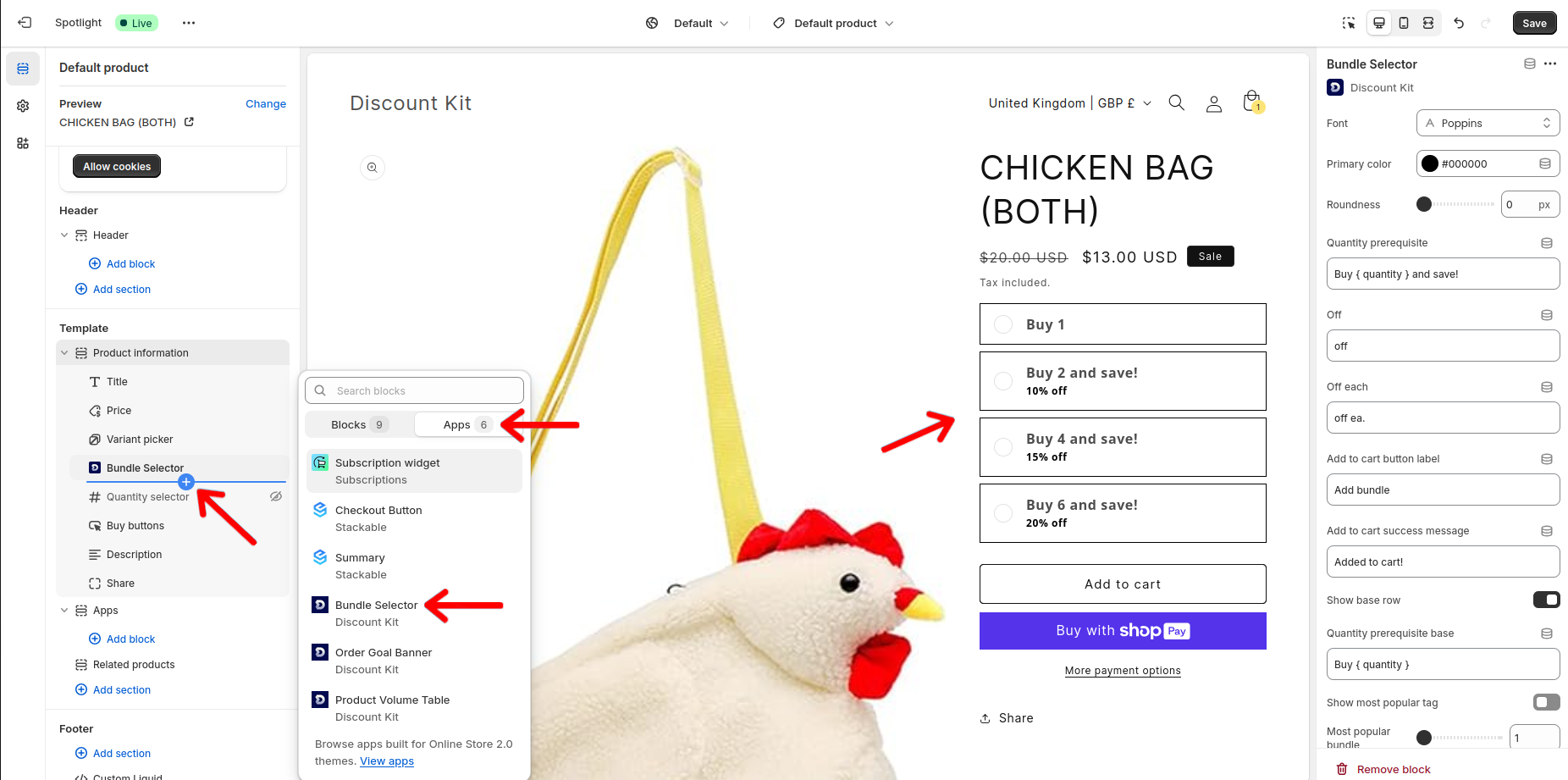
As above, on the **product** page in your **theme editor**, click **Add block** and select the **Bundle Selector** from available app blocks.
This component gives customers the ability to quickly add a selection of products to satisfy an available discount. For the sake of clarity, it could be best to create a product page specific to products with discounts and remove the default variant picker and quantity selector components for that page. The Bundle Selector will handle all of that for you!
#### Bundle Selector
As above, on the **product** page in your **theme editor**, click **Add block** and select the **Bundle Selector** from available app blocks.
This component gives customers the ability to quickly add a selection of products to satisfy an available discount. For the sake of clarity, it could be best to create a product page specific to products with discounts and remove the default variant picker and quantity selector components for that page. The Bundle Selector will handle all of that for you!