Custom
-
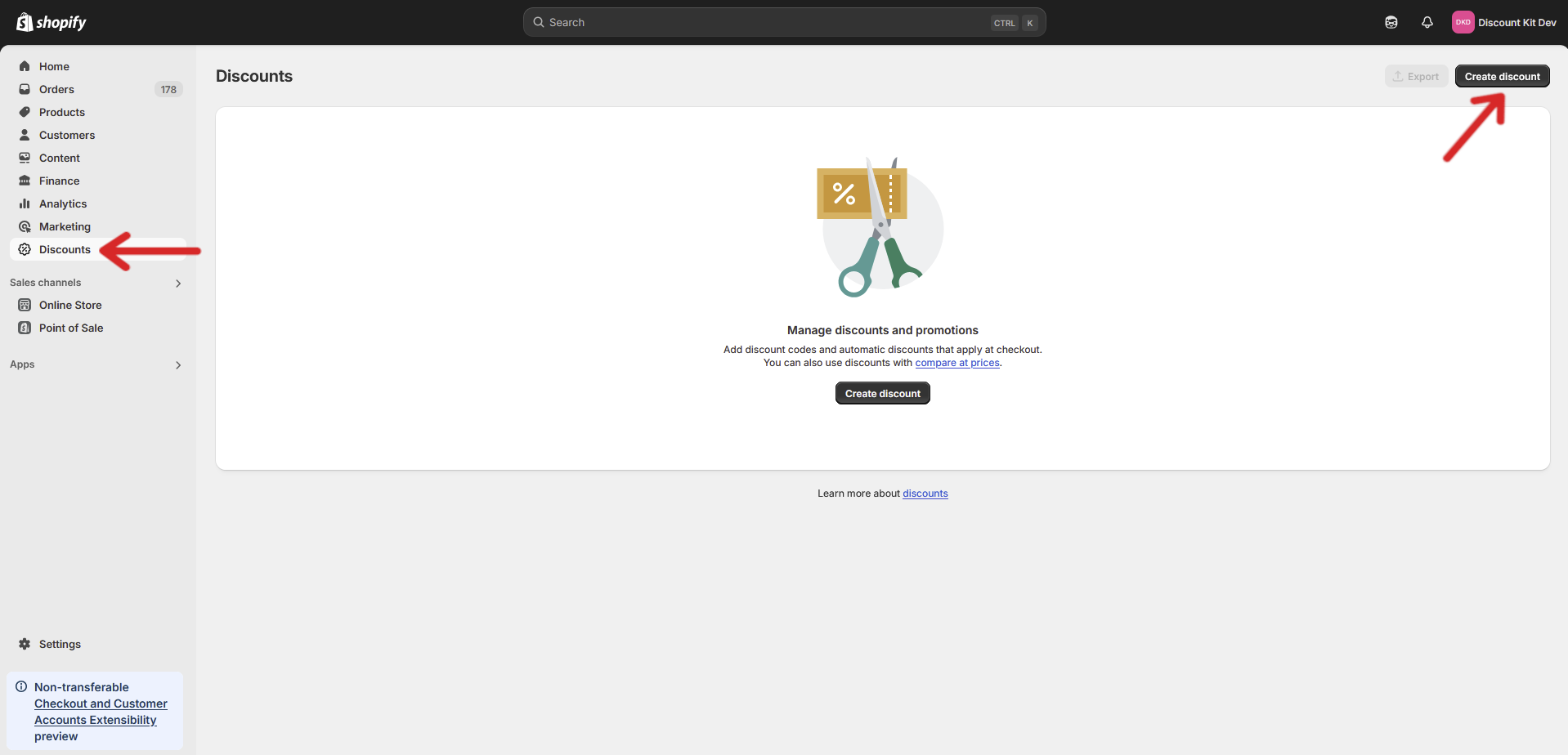
Open your store’s Discounts page and click Create discount
-
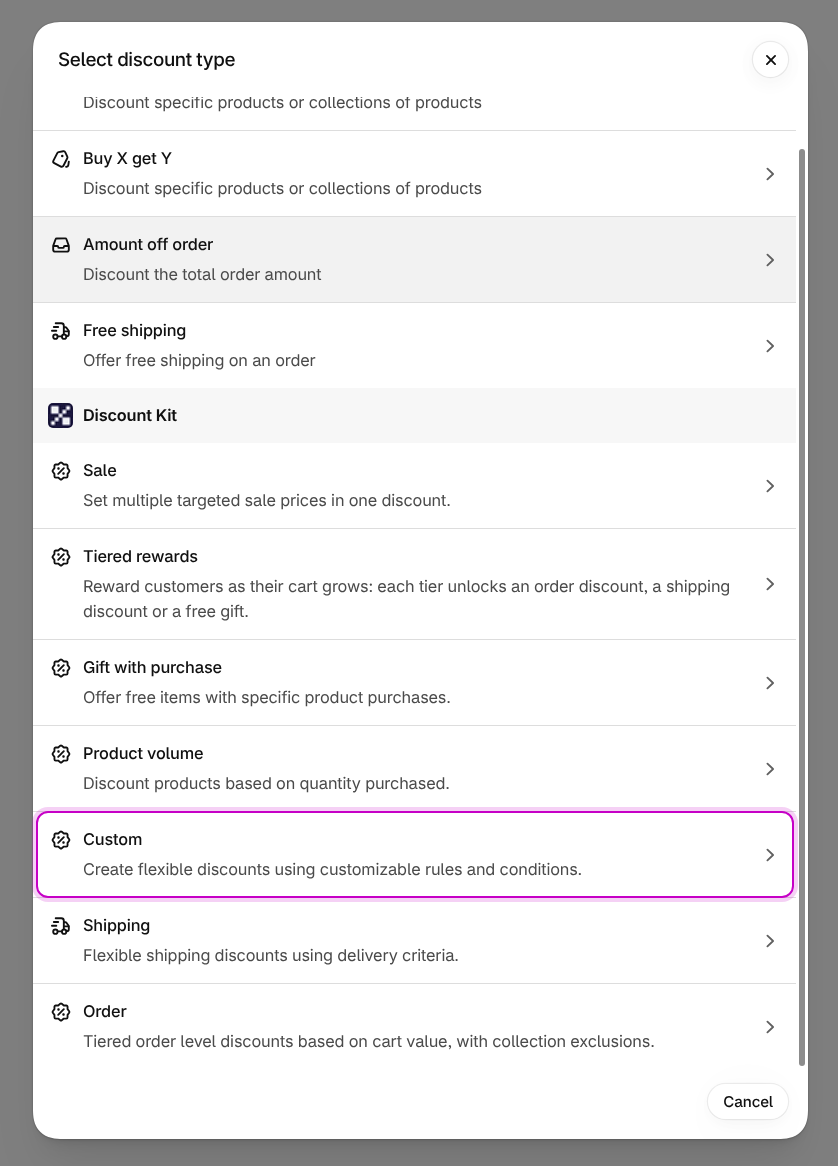
Scroll down to the Discount Kit section, which should now be available, and click Custom
-
Configure your desired settings and click Save
Settings
Section titled “Settings”Overview
Section titled “Overview”Custom discounts allow you to create advanced discount rules that go beyond standard Shopify discounting. With this feature, you can return multiple product discount proposals and control exactly how they get applied to cart lines in an order.
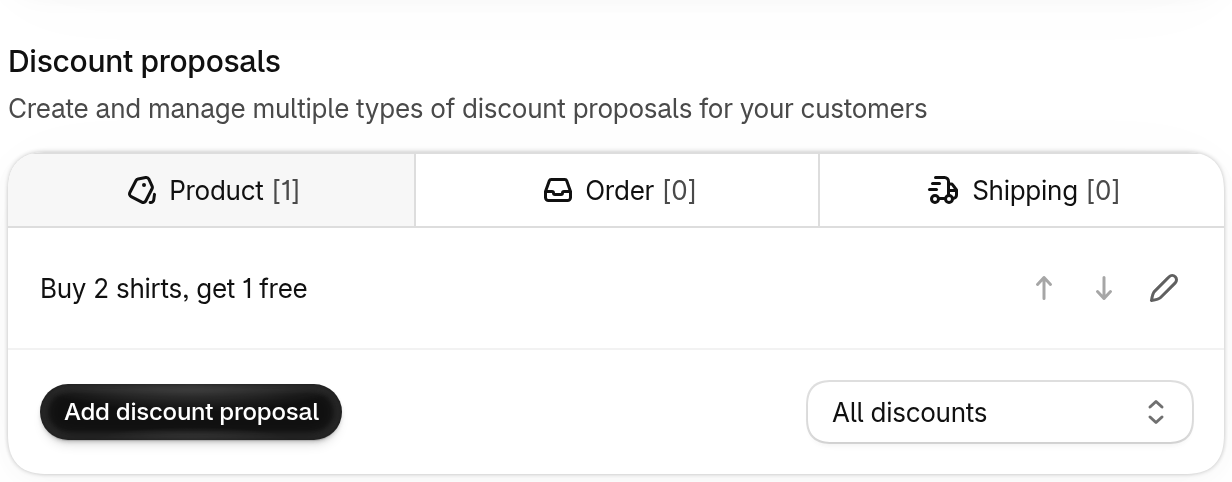
A discount proposal consists of several key components:
- Cart groups - Define which products to include in your rules
- Conditions - Specify when your discount should apply
- Targets - Select which products receive the discount
- Qualifiers - Create “Buy X, Get Y” style offers with repeating patterns
- Bundle pricing - Offer fixed prices for sets of items (e.g., “3 for $25”)
- Consume - Prevent discounted items from being used by subsequent rules
- Value - Determine how much discount to apply
Each component works together to create powerful, flexible discount scenarios that can handle complex business requirements.
Selection Strategy
Section titled “Selection Strategy”Once you’ve created multiple discount proposals, you can choose a selection strategy to determine which ones get applied:
- First matching discount - Applies the first valid discount that matches all conditions
- Maximum discount - Applies the discount that offers the largest total savings
- All discounts - Applies all valid discounts simultaneously
This approach gives you precise control over discount application, ensuring customers receive exactly the right offer.
Cart Groups
Section titled “Cart Groups”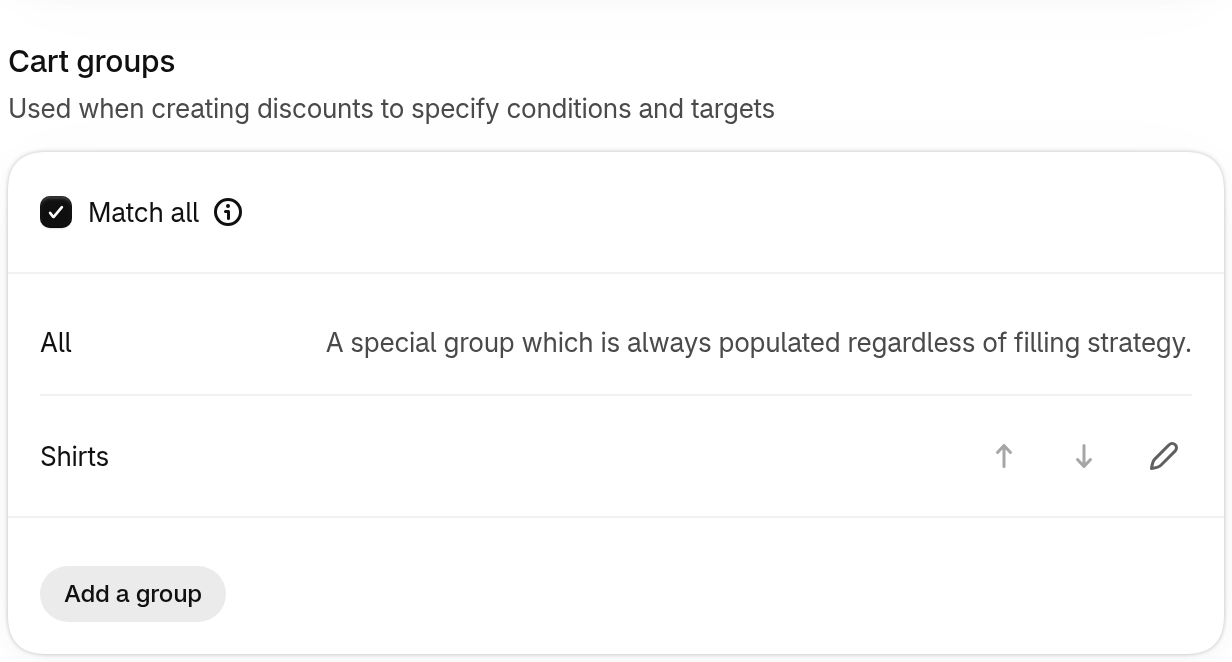
A Cart group is a powerful way to define which products you want to include in your discount rules. Think of it as creating a “bucket” of products that match specific criteria you set.
What is a cart group?
Section titled “What is a cart group?”A Cart group lets you define a specific set of products based on various filters. Once created, you can use these groups in your discount conditions, prerequisites, or targets.
How cart groups work
Section titled “How cart groups work”When you create a Cart group, you can apply multiple filters to narrow down exactly which products should be included. A product must match all selected filters to be included in the group.
Available filters
- Products: Select specific products/variants to include
- Collections: Include products from specific collections
- Line quantity: Match products with at least a certain quantity in the cart
- Line price: Match products with at least a certain price
- Line attribute: Filter by custom attributes assigned to products
- Metafield value: Filter products by their metafield values
- Purchase type: Include one-time purchases, subscriptions, or both
- Compare-at price: Include products that have a compare-at price
- Cart line type: Match lines based on whether they are nested under another cart line (bundle components, add-ons) or not
- Parent product: Match nested items based on which product their parent cart line is (available with the “Nested items only” line type)
You can select as many, or as few cart group filters. Remember that a product must match all selected filters to be included in a Cart group, allowing for precise targeting of your discount rules.
Filtering by cart line type
Section titled “Filtering by cart line type”Some cart lines are nested under another line — for example, the components of a bundle, or an add-on product attached to a main product. Enable Filter by cart line type to match lines based on this relationship:
- Not nested items: Match only lines that are not nested under another line
- Nested items only: Match only lines that are nested under another line
- Parents of nested items: Match only lines that have nested items attached to them
Filtering nested items by parent product
Section titled “Filtering nested items by parent product”When the cart line type is set to Nested items only, an additional Filter nested items by parent product option becomes available. Select one or more products (or specific variants), and the group matches only nested items whose parent cart line is one of the selected products.
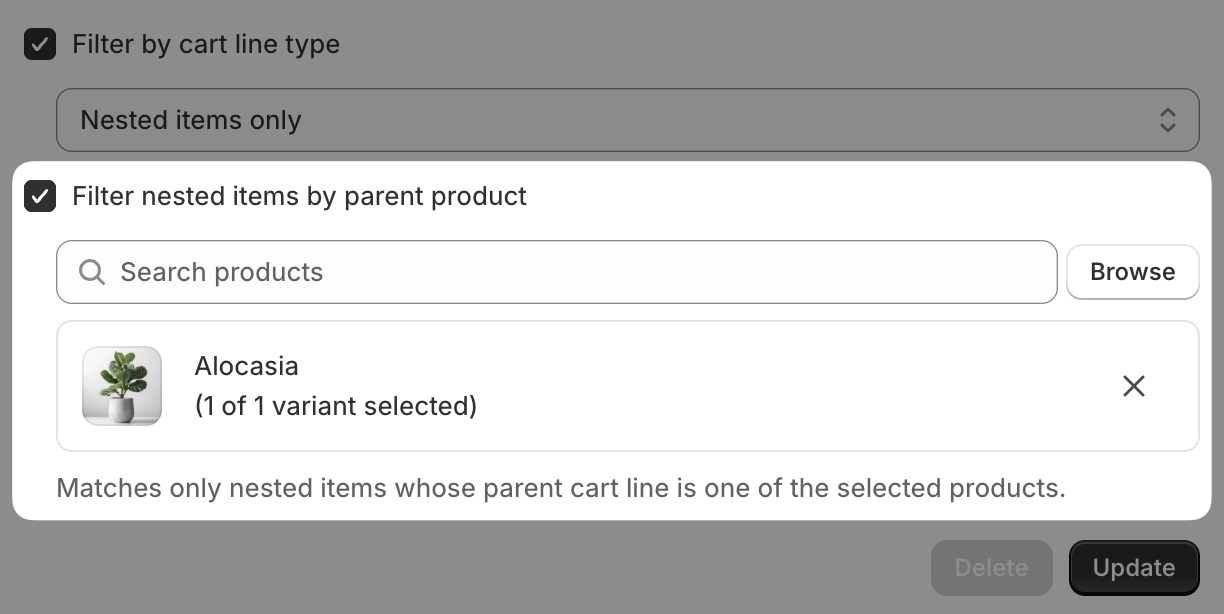
This makes it easy to target add-ons and upsells while ensuring the parent is correct. For example, if you offer a free gift-wrap add-on with a specific bundle, filtering by parent product ensures the discount applies only when the add-on is attached to that bundle — not when the same add-on is nested under a different, non-qualifying product.
When to use cart groups
Section titled “When to use cart groups”Cart groups are useful when:
- You want to create discounts that apply only to specific product combinations
- You need to set up prerequisites that require customers to buy certain items first
- You want to exclude certain products from discount eligibility
Conditions
Section titled “Conditions”What are Discount Conditions?
Section titled “What are Discount Conditions?”Conditions are rules that determine when your discount should be applied. They act as “true or false” statements that evaluate a customer’s cart and eligibility criteria.
How Conditions Work
Section titled “How Conditions Work”When creating a discount rule, you can add multiple conditions. All conditions must be true for the discount to apply. This means conditions are combined with an “AND” relationship - if any single condition fails, the entire discount will not be applied.
Conditions are organized into two categories:
- Cart conditions - Evaluate the contents of the customer’s cart
- Eligibility conditions - Evaluate customer and context criteria
Cart Condition Types
Section titled “Cart Condition Types”Cart conditions refer to a Cart Group and can check:
| Condition | Description |
|---|---|
| Quantity | Number of items from the group in the cart |
| Total | Total purchase amount from items in the group |
| Unique Products | Number of different products from the group |
| Unique Variants | Number of different variants from the group |
| Unique Groups | Number of selected groups with at least one item in the cart (spans multiple groups, ≥ 2 required) |
Most cart conditions support operators like “equals”, “greater than”, “less than”, “at least”, and “at most” for flexible matching. Unique Groups supports “at least”.
Unique Groups condition
Section titled “Unique Groups condition”The Unique Groups condition differs from the others: instead of evaluating a single Cart Group, it counts how many of a selected list of Cart Groups have at least one item in the cart. It answers the question “buy from at least N of these groups, get the discount.”
Use it when your offer rewards customers for spanning multiple product categories rather than buying a certain quantity of any one item. A common pattern is a Routine Builder for skincare or haircare:
- Cart Group: Cleanse (any cleanser)
- Cart Group: Treat (any serum or treatment)
- Cart Group: Moisturise (any moisturiser)
- Cart Group: Protect (any SPF/sunscreen)
You can stack tiered offers across multiple discount proposals:
- Proposal 1: 10% off when the cart contains items from 2 of the 4 groups
- Proposal 2: 15% off when the cart contains items from 3 of the 4 groups
- Proposal 3: 20% off when the cart contains items from all 4 groups
With the Maximum discount Selection Strategy, the customer automatically gets the qualifying proposal that offers the largest total savings. This works well for tiers that discount comparable targets.
Eligibility Condition Types
Section titled “Eligibility Condition Types”Eligibility conditions allow you to control who can receive each discount proposal:
| Condition | Description | Operators |
|---|---|---|
| Market | Target specific Shopify markets | “is any”, “is none” |
| Customer Tags | Target customers with specific tags | “is any”, “is none”, “is all”, “is logged in customer” |
| Location | Target specific retail/POS locations | “is any”, “is none” |
Per-Proposal Eligibility
Section titled “Per-Proposal Eligibility”A key feature of Custom discounts is the ability to set different eligibility conditions on each discount proposal. This allows you to:
- Create a single Custom discount with proposals targeting different markets
- Offer different deals to customers based on their tags within the same discount
- Configure location-specific offers for retail POS scenarios
For example, you could have:
- Proposal 1: 20% off for customers in the US market
- Proposal 2: 15% off for customers in the EU market
- Proposal 3: 25% off for VIP-tagged customers in any market
All within a single Custom discount configuration.
When to Use Conditions
Section titled “When to Use Conditions”Use cart conditions when you want to create discounts that only apply in specific situations, such as:
- When a customer has at least 3 items from a specific collection
- When a customer spends at least $100 on qualifying products
- When a customer has selected at least 2 different products from your new arrivals
Use eligibility conditions when you want to:
- Offer different discount values to different markets
- Target specific customer segments with unique offers
- Create location-specific promotions for retail stores
Conditions give you precise control over when discounts should be valid.
Targets
Section titled “Targets”What are discount targets?
Section titled “What are discount targets?”Targets determine which products receive the discount. These are the cart lines that will have their prices reduced when the discount conditions are met.
How targets work
Section titled “How targets work”Each target refers to a Cart Group. You can add multiple targets to a discount rule, and you can control whether:
All targets must be present - Every target group must have matching products in the cart.
For each target, you can also specify a quantity. This determines how many items from that group should receive the discount.
Targets give you precise control over which products receive discounts.
Qualifiers (Buy X, Get Y)
Section titled “Qualifiers (Buy X, Get Y)”What are qualifiers?
Section titled “What are qualifiers?”Qualifiers define what customers must purchase before receiving a discount. They create the “Buy” part of “Buy X, Get Y” promotions.
How qualifiers work
Section titled “How qualifiers work”When you add qualifiers to a discount rule, it becomes a repeating discount. The discount is applied once for each set of qualifying items in the cart.
For example, if your qualifier is “Buy 2 shirts” and a customer has 6 shirts in their cart, the discount can be applied up to 3 times.
Qualifiers always refer to a Cart Group. You can add multiple qualifiers that reference different groups to create more complex promotions, such as “Buy 1 shirt AND 1 pair of pants, get 20% off accessories”.
Controlling maximum repeats
Section titled “Controlling maximum repeats”You can limit how many times the discount repeats by setting a maximum repeats value. If left blank, the discount repeats as many times as the cart allows.
Example: Buy 2, Get 1 Free
Section titled “Example: Buy 2, Get 1 Free”- Create a Cart Group called “Shirts” that includes your shirt collection
- Add a qualifier: “Shirts”, quantity 2
- Add a target: “Shirts”, quantity 1
- Set the value to 100% off
A customer with 9 shirts would receive 3 free shirts (3 sets of “buy 2, get 1”).
Bundle Pricing
Section titled “Bundle Pricing”What is bundle pricing?
Section titled “What is bundle pricing?”Bundle pricing lets you offer a fixed price for a set of items — for example, “3 for $25”. Unlike Buy X Get Y promotions, bundle pricing does not require separate qualifying items. Instead, the target items themselves form the bundle.
How bundle pricing works
Section titled “How bundle pricing works”To create a bundle price:
- Add one or more targets with a quantity
- Enable Repeat on the discount rule
- Set the value to a fixed price
The discount automatically calculates how many complete bundles can be formed from the items in the cart and applies the fixed price to each bundle.
Example: 3 for $25
Section titled “Example: 3 for $25”- Create a Cart Group called “T-Shirts” with your t-shirt collection
- Add a target: “T-Shirts”, quantity 3
- Enable Repeat
- Set the value to fixed price $25
A customer with 7 t-shirts (normally $15 each) would get 2 bundles at $25 each (6 shirts) plus 1 shirt at full price — total $65 instead of $105.
Maximum repeats
Section titled “Maximum repeats”You can limit how many bundles a customer can receive by setting a maximum repeats value. If left blank, the discount creates as many bundles as the cart allows.
Consume
Section titled “Consume”What is consume mode?
Section titled “What is consume mode?”Consume mode prevents discounted items from being targeted by subsequent discount rules within the same Custom discount. When enabled, items that receive a discount from one rule are “consumed” and removed from the pool of available items for later rules. Only the discounted items (targets) are consumed — qualifying items remain available.
How consume mode works
Section titled “How consume mode works”Without consume mode, all discount rules evaluate against the full cart independently. This means the same item could be targeted by multiple rules.
With consume mode enabled, rules are evaluated in order. Once an item is discounted by a rule, it is removed from the pool. Later rules can only target the remaining items. Qualifying items (the “Buy X” part of a Buy X Get Y rule) are not consumed and remain available for subsequent rules.
Example
Section titled “Example”Consider a Custom discount with two rules and consume mode enabled:
- Rule 1: “Buy 2 Get 1 Free” on shirts
- Rule 2: “10% off” all shirts
If a customer has 9 shirts:
- Rule 1 applies 3 times (2 qualifying + 1 free per bundle) — 3 shirts are free and consumed
- Rule 2 applies 10% off to the remaining 6 shirts (the qualifying shirts from Rule 1)
With consume mode disabled, Rule 2 would apply 10% off to all 9 shirts in addition to the 3 free shirts from Rule 1.
When to use consume mode
Section titled “When to use consume mode”Use consume mode when:
- You have multiple rules that target overlapping products and want to prevent double-discounting
- You want to prioritize one offer over another (earlier rules get priority)
- You’re combining “Buy X, Get Y” with a fallback discount for remaining items
Values
Section titled “Values”The custom discount allows you to specify discount values in a few different ways:
-
Percentage off - Reduce the price by a percentage (e.g., 20% off)
-
Amount off - Reduce the price by a fixed amount (e.g., $10 off)
-
Fixed price - Set a specific price for the item (e.g., $5 each)
Amount off
Section titled “Amount off”Allows you to specify a monetary amount to be spread across all qualifying items, or optionally applied to each qualifying item.
Fixed price
Section titled “Fixed price”Sets a specific price regardless of the original item price. It is only available for repeating discount rules
Apply to compare at price
Section titled “Apply to compare at price”You can optionally target the compare-at price of targets when applying discounts. Here, discount values are dynamically calculated based off the compare-at price, rather than the actual price of the product. Note, only the ‘difference’ between the desired discount, and the already discounted value will be applied.
Metafield Configuration
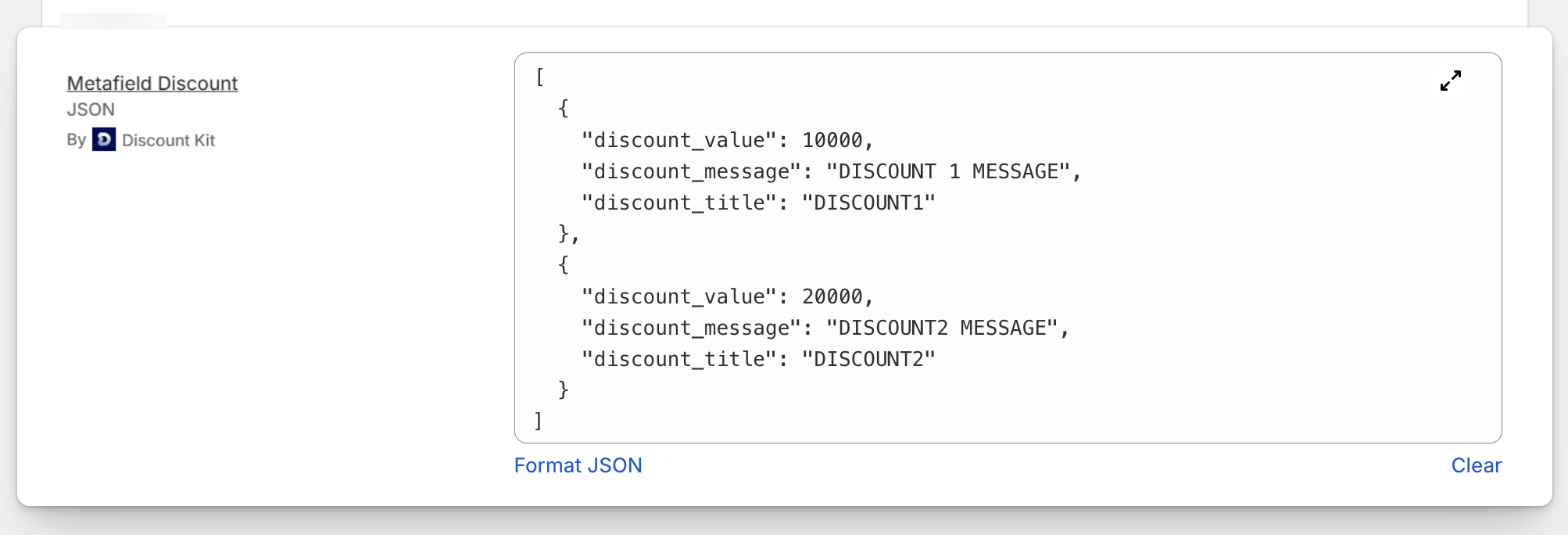
Section titled “Metafield Configuration”Discount Kit’s product and variant metafield ‘Metafield Discount’ configuration allows you to specify information that can be used inside the Custom Discount. The configuration must be structured as an array:
type CustomData = {  discount_title: String // required - used to match configurations to specific discounts  tag?: String // optional, and used only in the 'grouping' mechanism  discount_message?: String // optional, defaults to discount title  discount_percentage?: number // optional, 1-100  discount_value?: number // optional, amount off in cents, 100 = $1 off  discount_fixed_price?: number // optional, target price in cents, 2500 = $25.00}
type CustomDatas = CustomData[] // array is requiredThe discount_fixed_price field sets the item to a specific price by discounting the difference between the current price and the target price. For example, if a product costs $40 and discount_fixed_price is set to 2500 (i.e. $25.00), a $15 discount will be applied. If the current price is already at or below the fixed price, no discount is applied.
The schema also allows additional custom properties (e.g. discount_badge) which are not used by the discount function but can be read by theme code or other integrations.
This configuration is wrapped by a discount. This means you get all of the other benefits of a Discount Kit discount (manual or automatic codes, scheduling, targeting specific customers, targeting specific markets), but can change the discounted variants, their values and their messaging at any time!
You must provide an array of configurations, with each configuration specifying a matching discount_title. This allows you to define different discount behaviors for different Custom discounts. If you specify multiple configurations for the same discount, only the first matching configuration will be used.
Integrations
Section titled “Integrations”There are no integrations for the Custom discount out of the box. However, take a look at Discount Kit Live for ideas on how to build your own!