Discount Price
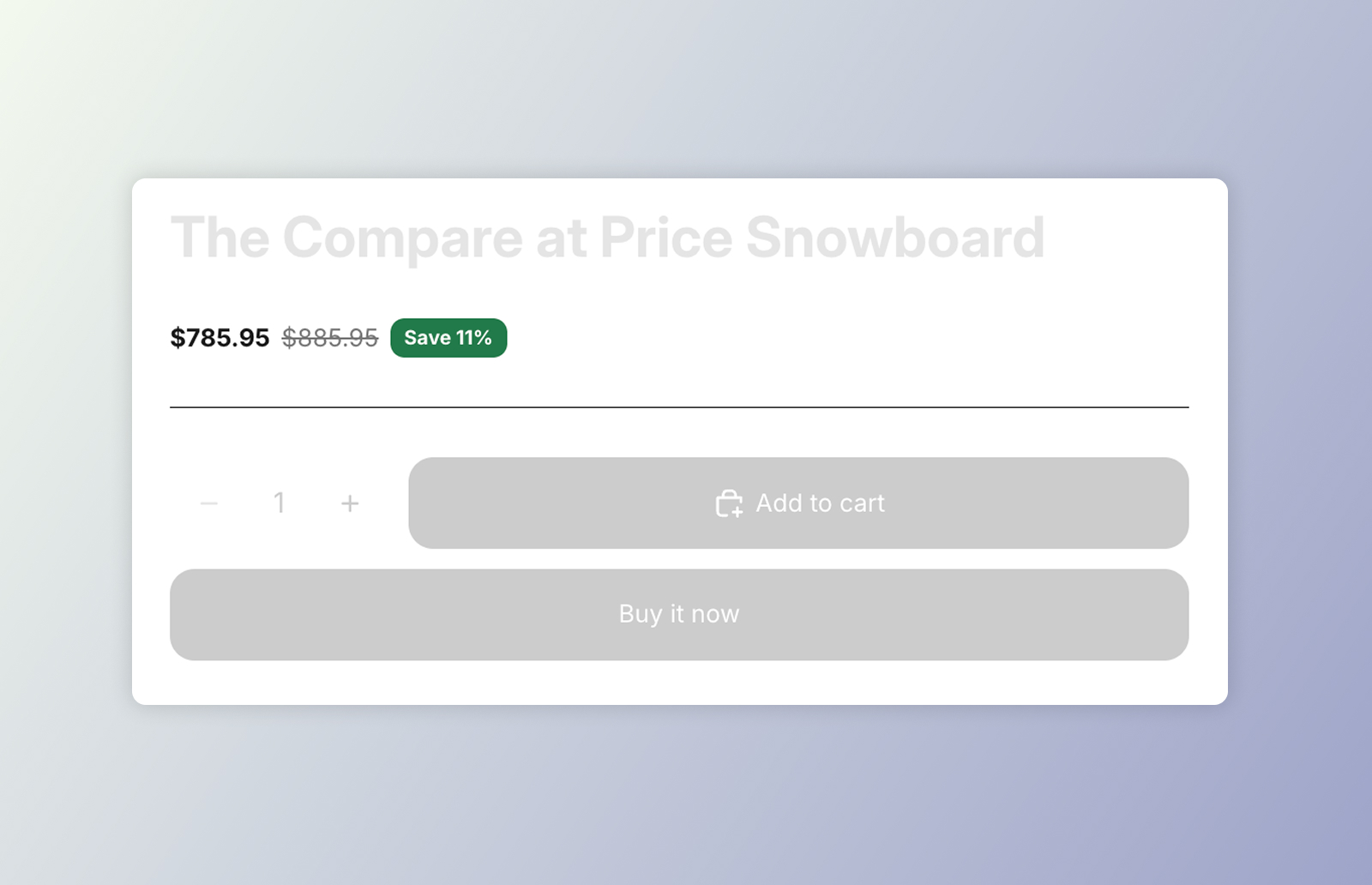
DKL Price component
<dkl-price> renders a product’s price in its own shadow DOM rather than hijacking the
theme’s price element — so it fully controls the markup and styling. It’s
event-driven: it has no direct reference to the volume picker,
but reacts to the tier-change events the picker emits.
- When a volume tier is selected (matched by product id), it shows the discounted price as the main amount and the original price struck through — the compare-at when the variant is on sale, otherwise the regular price. Deselecting reverts to the base price.
- On a variant change it updates the base price and re-applies the active tier, recomputing the discount off the new variant’s price (sale-priced variants included).
- With a sale discount attached, it shows the sale price, or a selected tier’s price when that’s lower.
While a tier or a sale price is showing, the component sets data-dkl-discounted on itself, so CSS can
colour the discounted price distinctly. An optional savings badge shows how much the
shopper saves.
For products sold by measure, the price can also show Shopify’s unit price, e.g.
“$4.00/100g”. Turn on Show the unit price on the component (or data-show-unit-price
on a web component); it appears for variants with a unit price measurement set up in
Shopify, and follows the price shown: an attached sale or a selected
volume tier. It sits on its own line
under the price, in a subdued grey by default; its colour, size and italic style are set on
the component.
On this component
Section titled “On this component”Sale discount pricing
Section titled “Sale discount pricing”Attach a sale discount to a price component and the price shows what the shopper pays with the sale applied. Pick the sale in the component’s Sale discount setting, under Behaviour.
- The sale price is rendered with the page, so there’s no flash of the full price.
- The full price is struck through beside it: the variant’s compare-at price when it has one, otherwise its regular price.
- When a volume tier is selected, the price shows whichever is better, the sale or the tier. The two are never added together. It updates as the shopper changes the quantity, tier or variant.
- With the savings badge on, it shows one saving: the difference between the struck-through price and the price shown. Match the discount, the default format, shows a percentage for a percentage-off sale or tier and an amount otherwise.
- With Show the unit price on, the unit price is shown at the sale price too, worked out from the variant’s measurement.
- The price reads the same offers as the sale’s sale badge, so the two always agree.
There are three limitations for now.
Every variant is priced with the product’s best offer. A sale can give different variants of the same product different offers, for example 20% off most colours but 10% off one that’s in a separate collection. The price component doesn’t yet tell those variants apart. It finds the best offer the sale has for any of the product’s variants and applies it to every variant, at that variant’s own price.
So a variant the best offer doesn’t cover can show a lower price than checkout gives it. Checkout always charges the right price; only the displayed price is affected. If your sale gives a product’s variants different offers, don’t attach that sale to the price component until per-variant pricing is available.
Metafield-based values follow the first variant only. When the sale takes its value or its price from a metafield, the price shows it for the variant shown when the page loads. A browser can’t read metafields, so when the shopper switches variant the price goes back to that variant’s regular price. Sales with a set percentage, amount or fixed price update on every variant switch.
Offers that exclude items already on sale. If the variant shown when the page loads already has a compare-at price and the sale’s offer excludes sale items, the price shows no sale, even after the shopper switches to a variant the offer does cover.
Accessibility
Section titled “Accessibility”- Labelled amounts. Each amount is preceded by a visually-hidden label (
::part(vh)) — “Price” for the main amount, “Regular price” for the struck-through compare-at, and “Unit price” and “per” around the unit price — so screen readers can tell the live price from the original. The labels follow the storefront’s language: English, German, French, Spanish and Portuguese (Brazil), with English for any other. The volume picker and table read their unit prices’ “per” the same way. Don’t remove or repurpose::part(vh). - Live price announcements. When a variant or tier changes, the new price is announced
through a managed
aria-live="polite"region — concise, e.g. “£18.00, was £24.00, Save 25%”. It fires only on a change, never on initial load, and lives on a dedicated region rather than the host (a live region wrapping shadow DOM is monitored unreliably across screen readers). - Contrast. When restyling the savings badge, keep
--dkl-price-savings-colorand--dkl-price-savings-backgroundat sufficient contrast.