Order
-
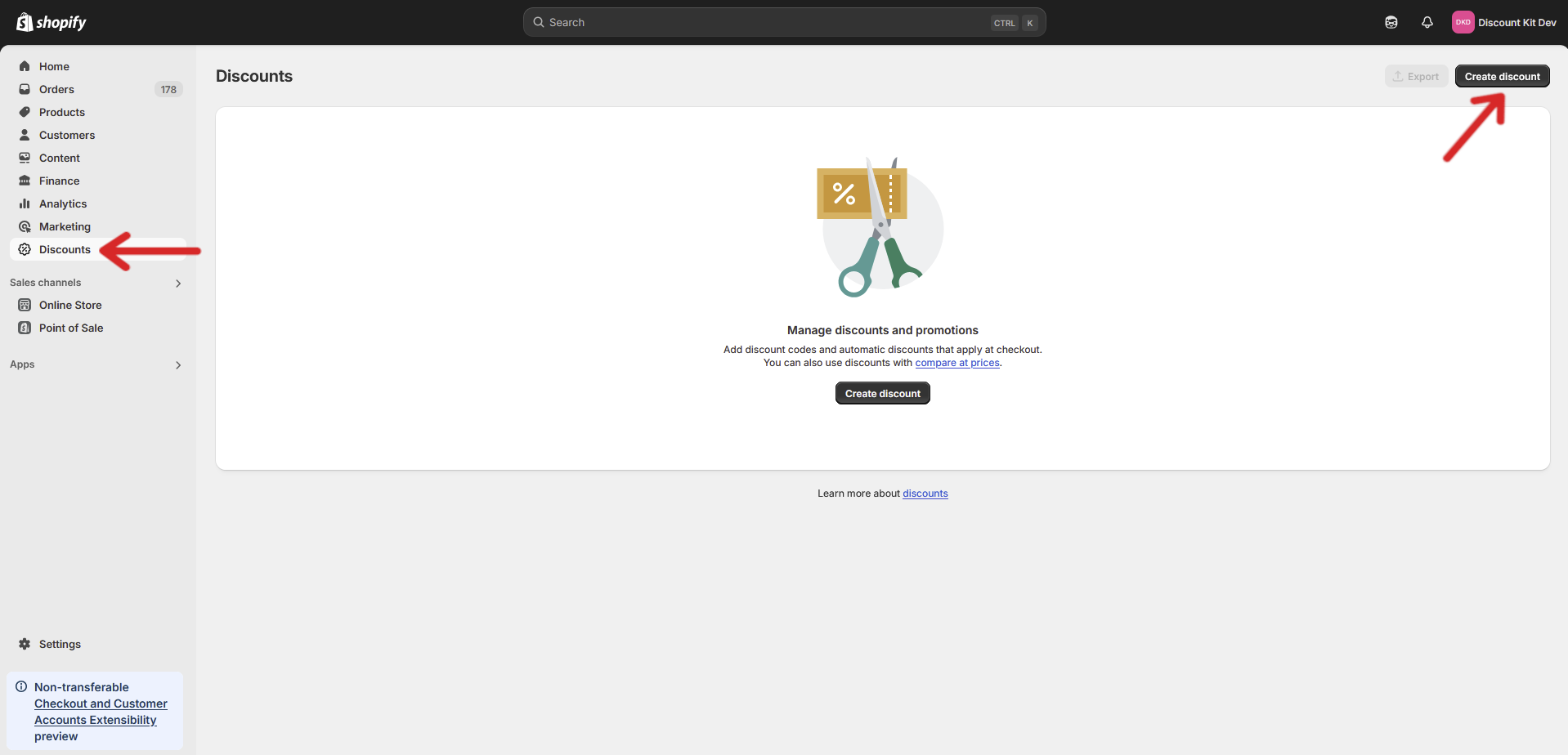
Open your store’s Discounts page and click Create discount
-
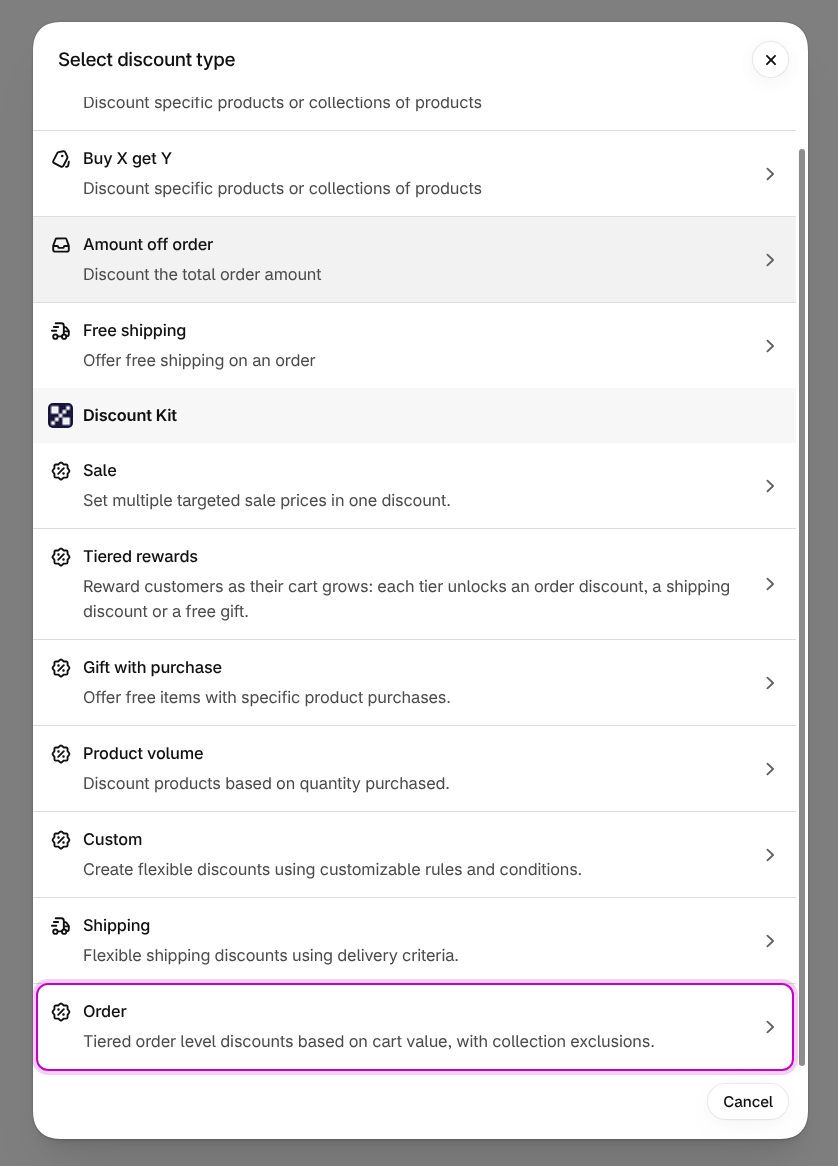
Scroll down to the Discount Kit section, which should now be available, and click Order
-
Configure your desired settings and click Save
Settings
Section titled “Settings”Value Type
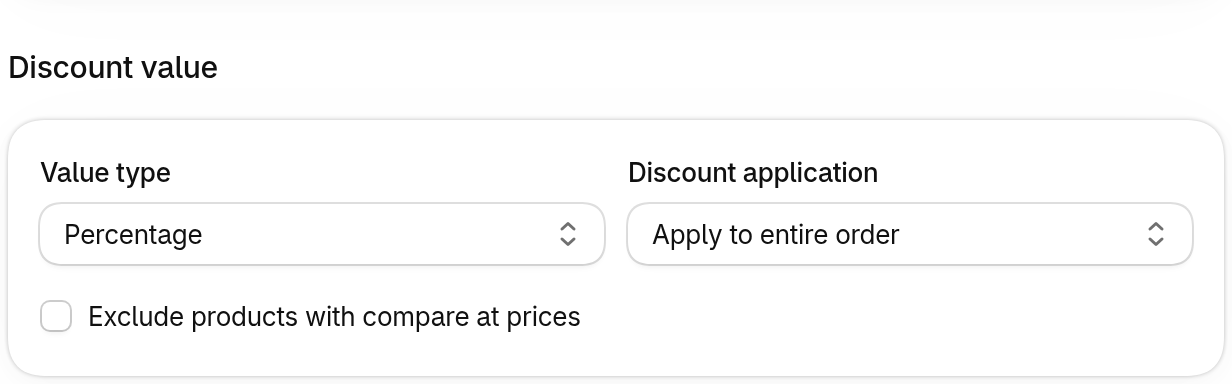
Section titled “Value Type”Denotes the type of discount that will be applied, either a percentage or fixed amount, to the order.
Discount application
Section titled “Discount application”Exclude a specific collection
Section titled “Exclude a specific collection”You can exclude products from a specific collection from counting towards thresholds or receiving discounts.
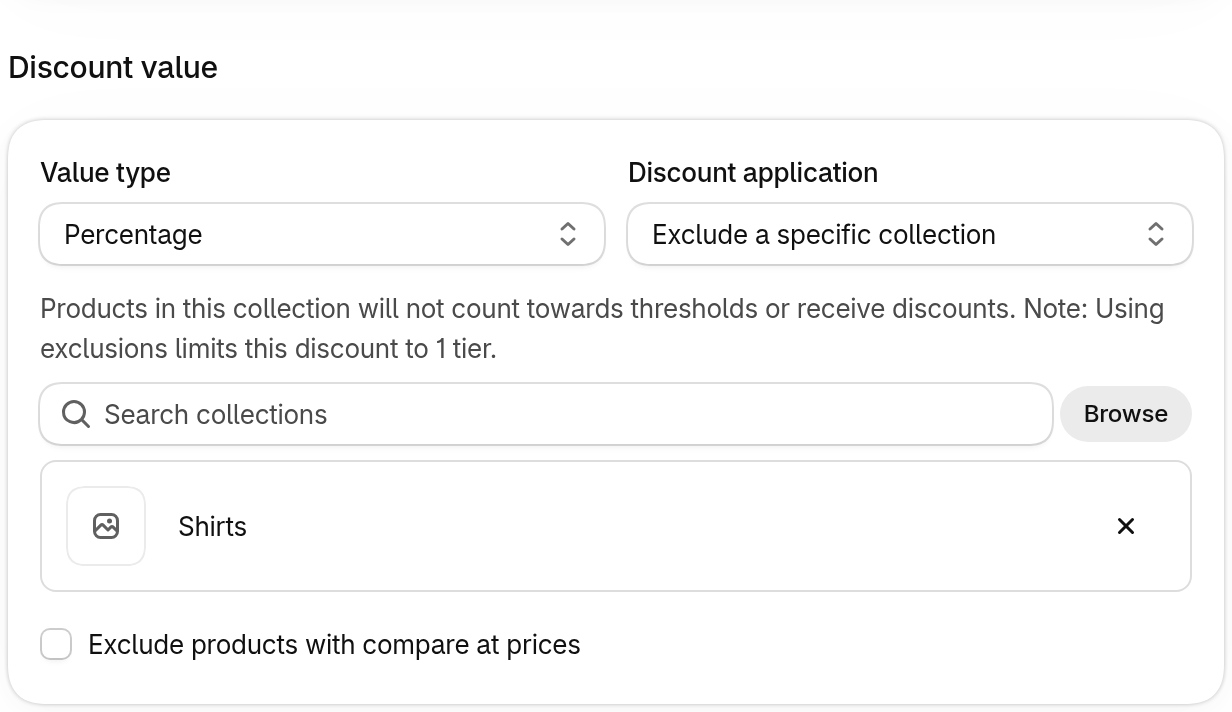
Exclude products with compare at prices
Section titled “Exclude products with compare at prices”Allows for excluding products with compare at prices from both the prerequisite count and discount.
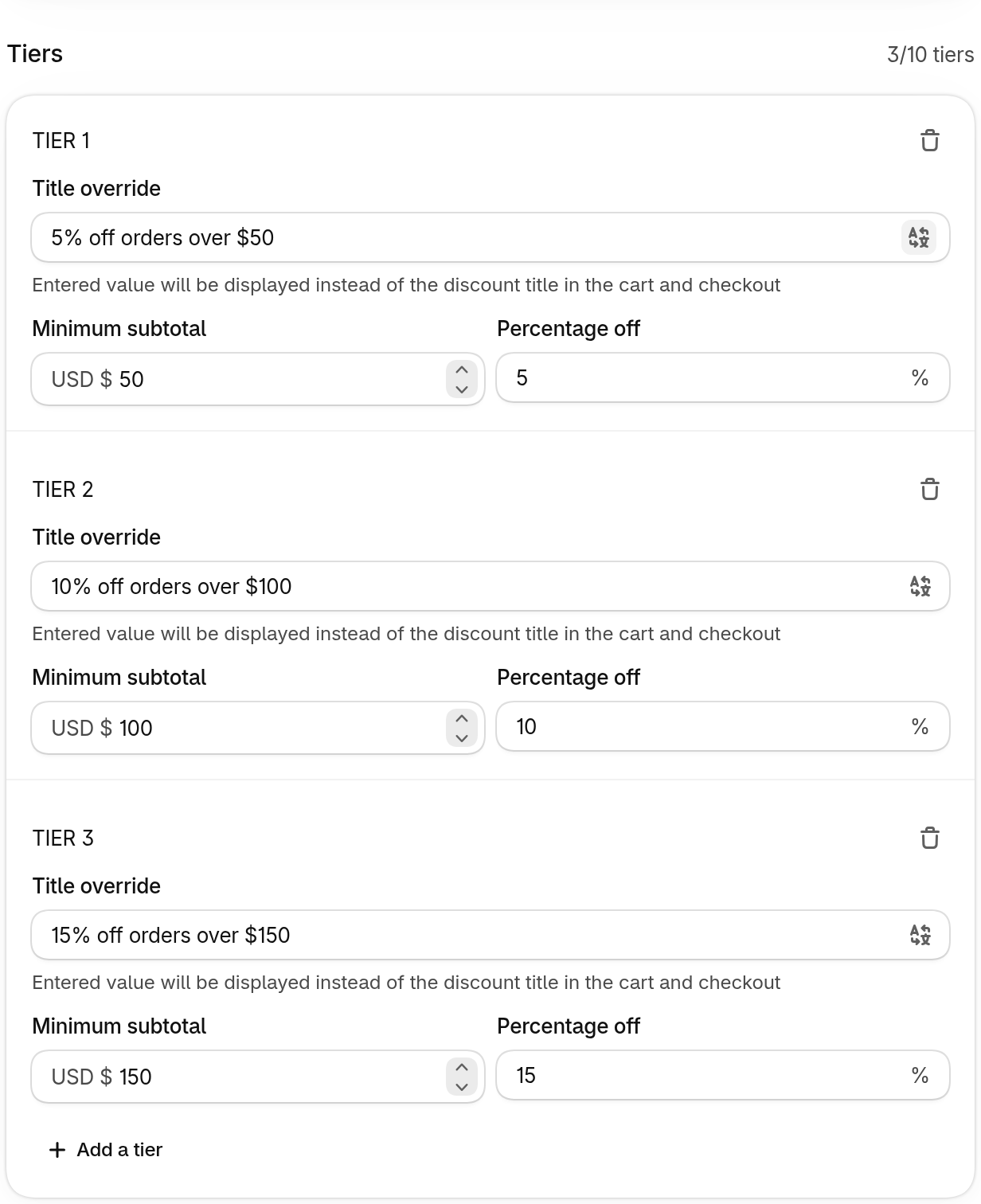
Allows for the merchant to give varying discount amounts based on different cart values. Discounts are not cumulative, and thus each tier will replace the discount value of the previous tier.
Title override
Section titled “Title override”This will be displayed instead of the discount title in the cart if specified. Currently only works for automatic discounts.
Minimum subtotal
Section titled “Minimum subtotal”Specifies the minimum value required in the cart to unlock the tier.
Percentage/Fixed amount off
Section titled “Percentage/Fixed amount off”Specifies the discount value that will be applied to the cart.
Integrations
Section titled “Integrations”Order Goal Banner
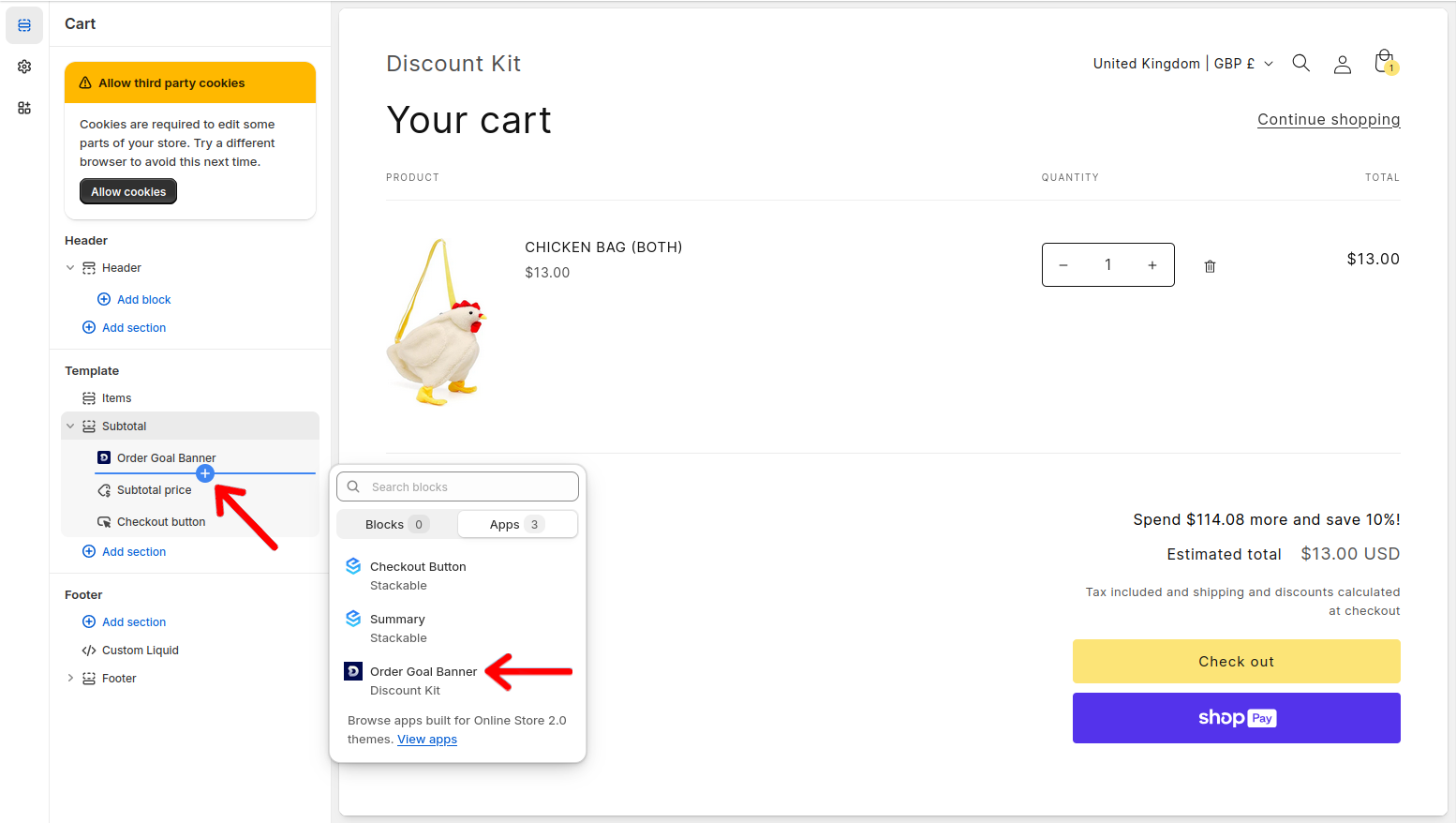
Section titled “Order Goal Banner”Open your store’s Theme Editor and then head to the cart page. On the left-hand side, click Add block. Under Apps, select Order Goal Banner.
This component displays the remaining spend amount needed to achieve the next tier in an active Order Goal discount.