Gift with purchase
-
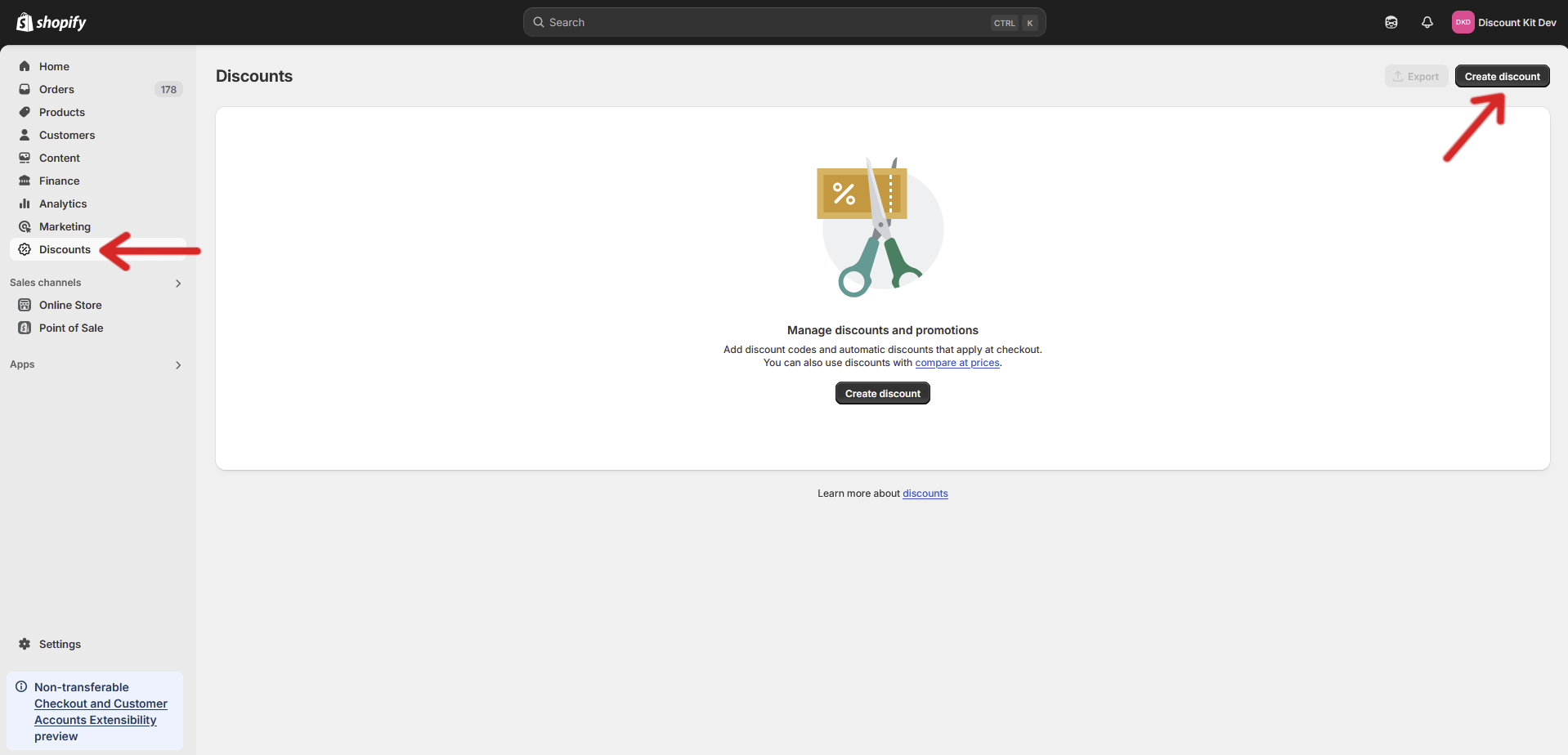
Open your store’s Discounts page and click Create discount
-
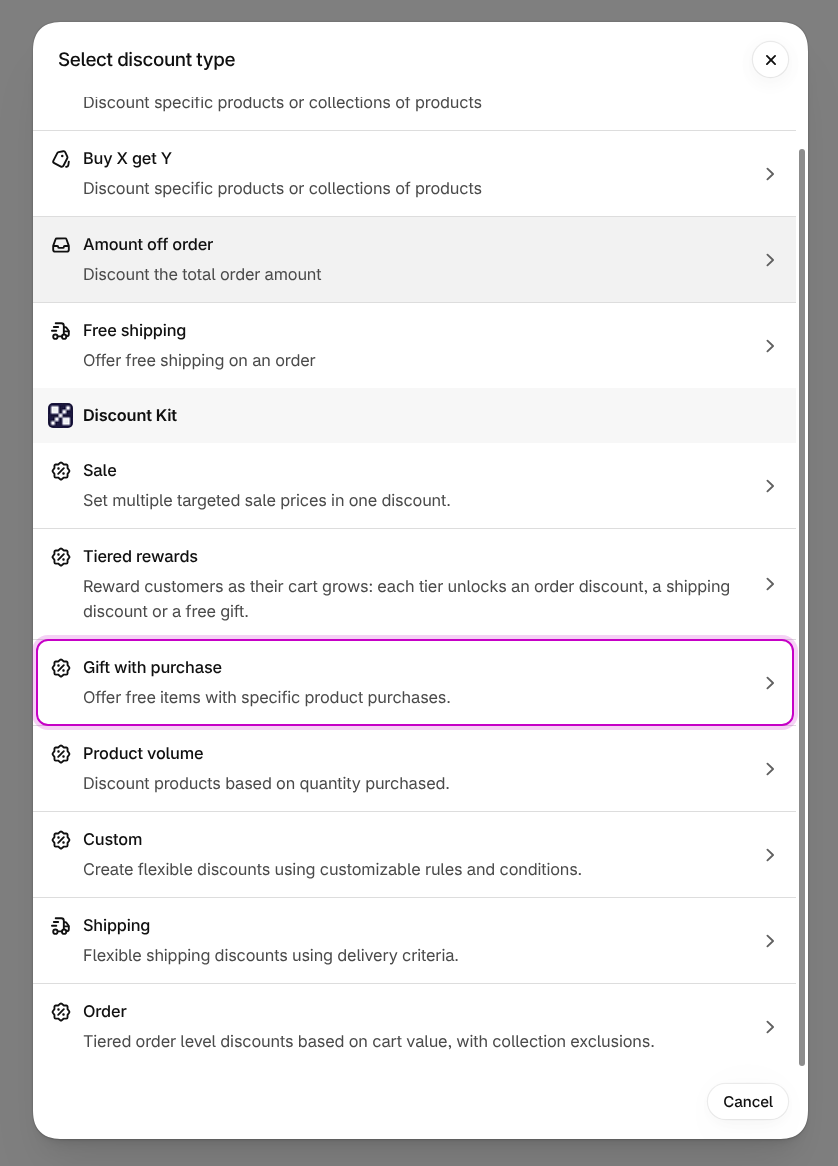
Scroll down to the Discount Kit section, which should now be available, and click Gift with purchase
-
Fill in the desired settings and click Save
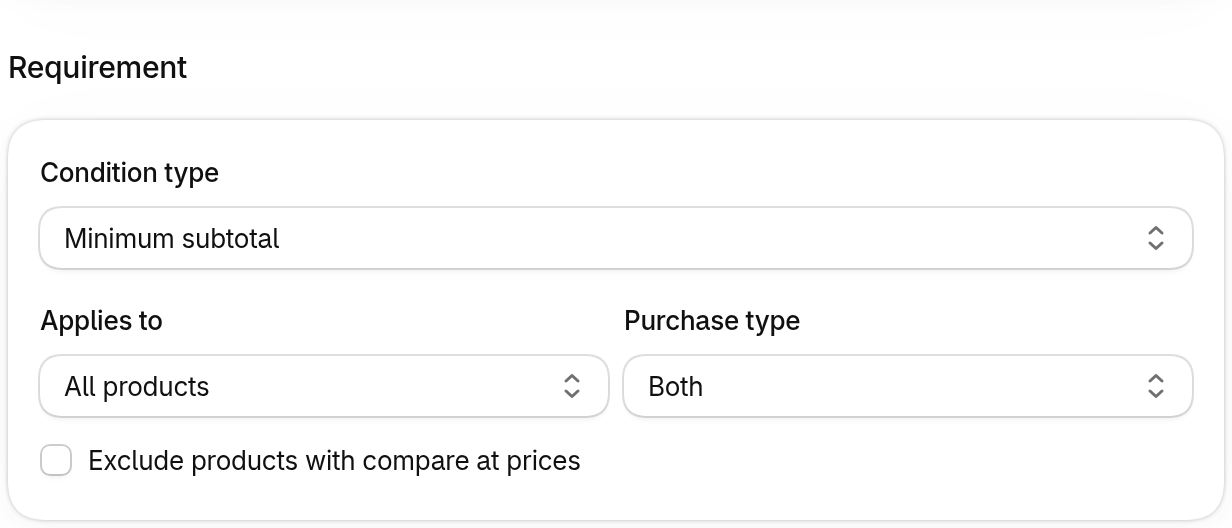
Settings
Section titled “Settings”Condition type
Section titled “Condition type”What the cart needs before the gift unlocks: a Minimum quantity of items, or a Minimum subtotal.
Applies to
Section titled “Applies to”Which products count toward the requirement: all products, specific products, or collections.
Purchase type
Section titled “Purchase type”Whether one-time purchases, subscriptions, or both count toward the requirement.
Exclude products with compare at prices
Section titled “Exclude products with compare at prices”Products with a compare-at price don’t count toward the requirement.
Selection strategy
Section titled “Selection strategy”Which gift items in the cart are made free:
- Only products added via storefront or checkout widgets (e.g. gift selector) — only gifts added by Discount Kit’s gift selector, automatic gifts or the checkout block are free. If a customer adds the same product to the cart themselves, they pay for it.
- Any matching product — any of the gift products in the cart is free once the requirement is met.
A discount code starts on Any matching product. With Only products added via storefront or checkout widgets, its gift is added for the customer once the code is applied: see Gift with purchase by discount code.
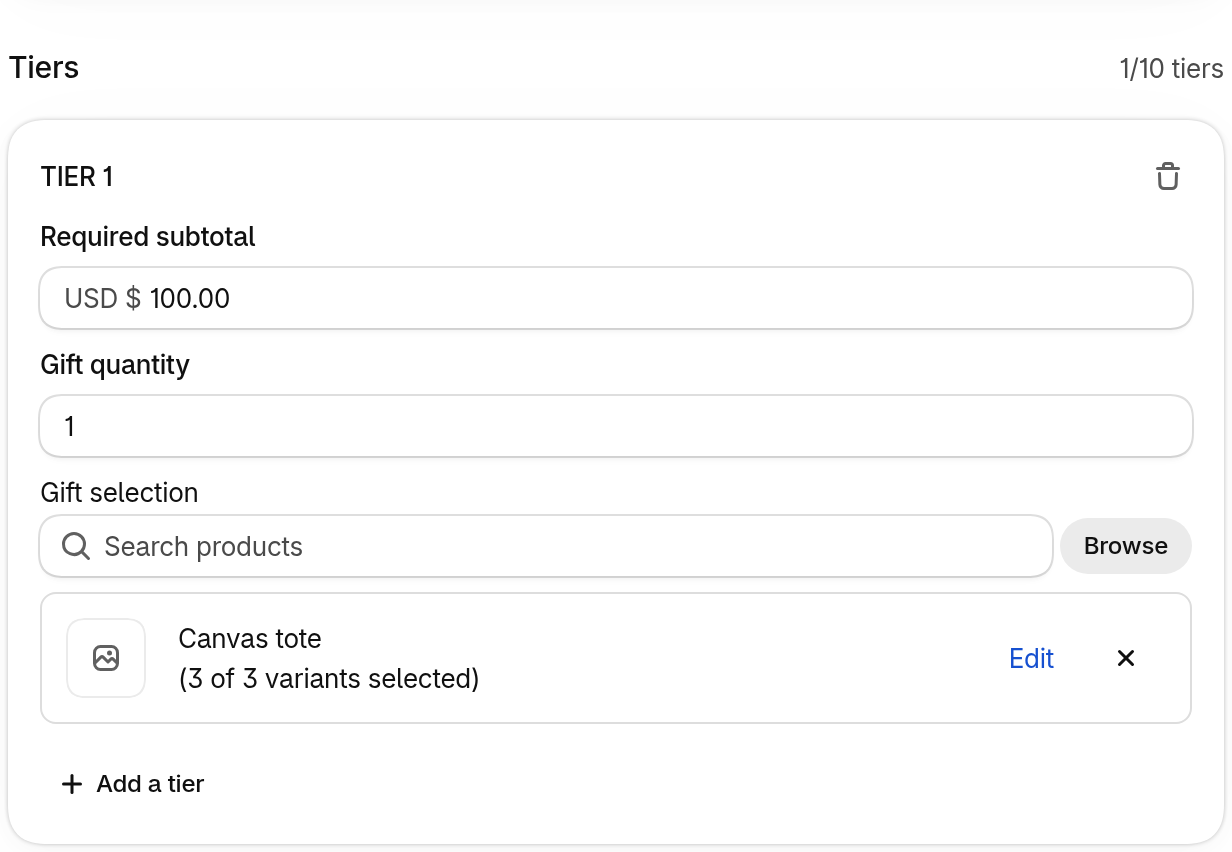
A discount can have up to 10 tiers, each unlocking its own gift.
Required quantity / Required subtotal
Section titled “Required quantity / Required subtotal”How many items, or how much spend, unlocks the tier.
Gift quantity
Section titled “Gift quantity”How many gift items the customer gets free.
Gift selection
Section titled “Gift selection”The products the gift can be. Click Browse to pick them, and Edit to choose which variants count.
Gift products must be on your Online Store
Section titled “Gift products must be on your Online Store”Discount Kit adds gifts through your online store’s cart, and your online store can only sell products that are published to its Online Store sales channel. A gift product that isn’t published there can’t be added: the gift selector doesn’t offer it and an automatic gift is never added, so a shopper meets the requirement and gets no gift. The same goes for a gift product whose status is Draft or Archived.
When a gift you pick isn’t on the Online Store, the editor shows a warning under Gift selection, with a link to each product.
To fix it, open the product in your Shopify admin and:
- Set its Status to Active, or to Unlisted to keep it out of your catalogue (see below).
- Under Publishing, make sure Online Store is one of its sales channels.
Keeping gift products out of your catalogue
Section titled “Keeping gift products out of your catalogue”Gift products are often left unpublished so shoppers don’t come across them. Use the Unlisted status instead. An unlisted product stays on the Online Store, so Discount Kit can still add it as a gift, but it’s left out of your collection pages, search results and product recommendations. Shopify’s guide to managing searchability compares it with the other ways to hide a product.
An unlisted product can still be bought by anyone who has its link. With Only products added via storefront widgets selected, a shopper who adds the gift product themselves pays its price, since only gifts Discount Kit adds are free. So give a gift product its real price, not 0: at 0, anyone who finds it can check out with it for free.
Integrations
Section titled “Integrations”Automatic Gifts
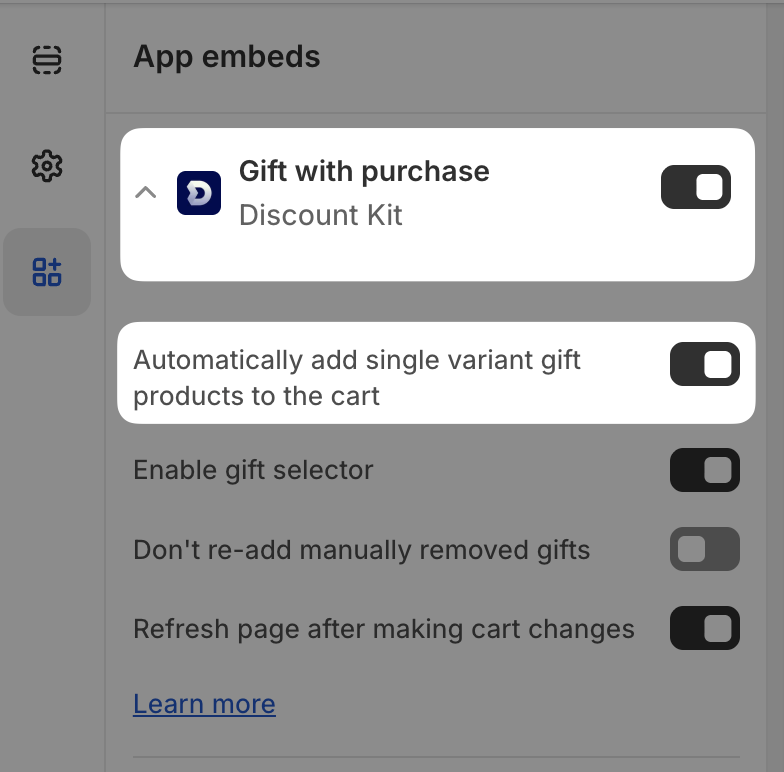
Section titled “Automatic Gifts”Open your store’s theme editor. Select App embeds in the left hand panel and then enable Gift with purchase from Discount Kit. Open up Gift with purchase’s settings using the drop-down arrow and select Automatically add single variant gift products to the cart.
Once enabled, once a customer has unlocked a Gift with Purchase discount tier that contains a single product variant it will automatically be added to the cart. For gift tiers that contain multiple variants and the customer needs to choose from among them see instructions for enabling the Gift Selector below.
Cart updates
Section titled “Cart updates”After Discount Kit adds or removes a gift, something has to re-render the cart the shopper is looking at. This is handled automatically:
- Themes built on Shopify’s standard cart (Dawn and Horizon families, and any theme that configures
Shopify.actions.updateCart) receive the gift through Shopify’s cart action. The theme re-renders its cart drawer or page in place, and Shopify dispatches the standardshopify:cart:lines-updateevent for anything else listening. - Rebuy Smart Cart is detected automatically. Gifts are written through the cart AJAX API, which Smart Cart watches, and Smart Cart re-renders itself. No setup is needed.
- Kaching Cart is detected automatically too. Gifts are written through the cart AJAX API, and Kaching Cart refreshes its drawer with them, with no page reload. Gifts Discount Kit adds or removes on its own don’t open the drawer. A gift the shopper picks in the gift selector opens it, as any add to cart does. No setup is needed.
- Everything else gets the gift through the cart AJAX API, and the page reloads so the cart cannot fall out of sync.
If your theme re-renders the cart itself, you have two ways to take over from the reload:
-
Adopt Shopify’s standard cart actions. Configure
Shopify.actions.updateCartin your theme and listen forshopify:cart:lines-update. Discount Kit writes gifts through the action, so your theme sees them like any other cart change and no reload happens. See Shopify’s guide to standard storefront events and actions. -
Use a custom event integration. In the Gift with purchase app embed, uncheck Automatic cart updates and enter an event name under Cart update event. Discount Kit dispatches that event on both
documentandwindowafter every gift change instead of reloading, and your code re-renders the cart:document.addEventListener('my-theme:cart-updated', () => {// Re-render your theme's cart here});
Whatever the mode, Discount Kit also dispatches discount_kit:cart_changed on document after every gift change. It is informational; it never changes how the cart is refreshed.
Allowing shoppers to remove gifts:
You can allow shoppers to manually remove automatically added gifts without them being re-added to the cart. This is useful when a shopper doesn’t want a particular gift, even though they’ve qualified for it.
To enable this feature, open the Gift with purchase settings in your theme editor’s App embeds section and enable Don’t re-add manually removed gifts.
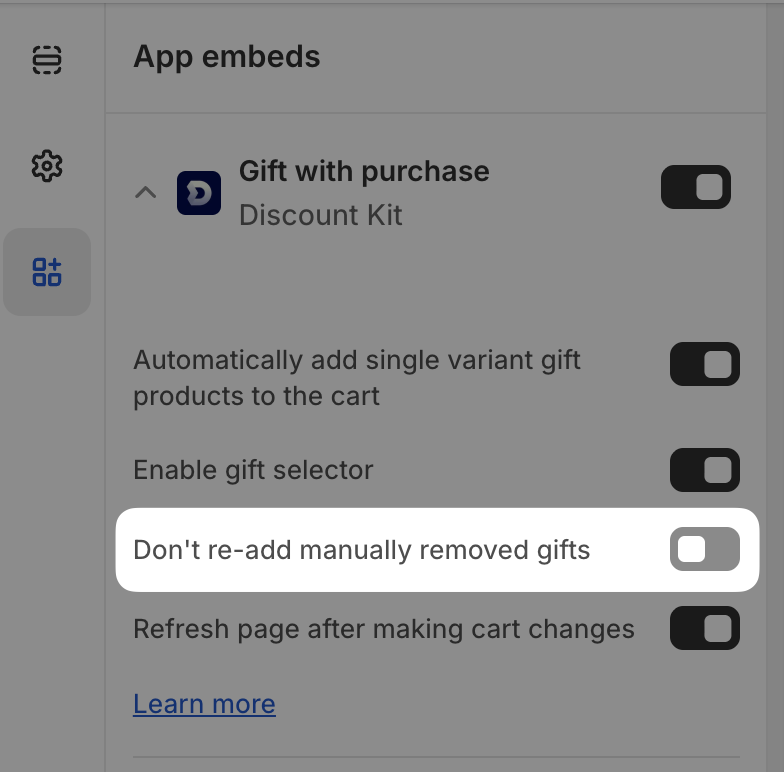
With this setting enabled, if a shopper manually removes an automatically added gift from their cart, it will not be re-added again.
Gift Selector
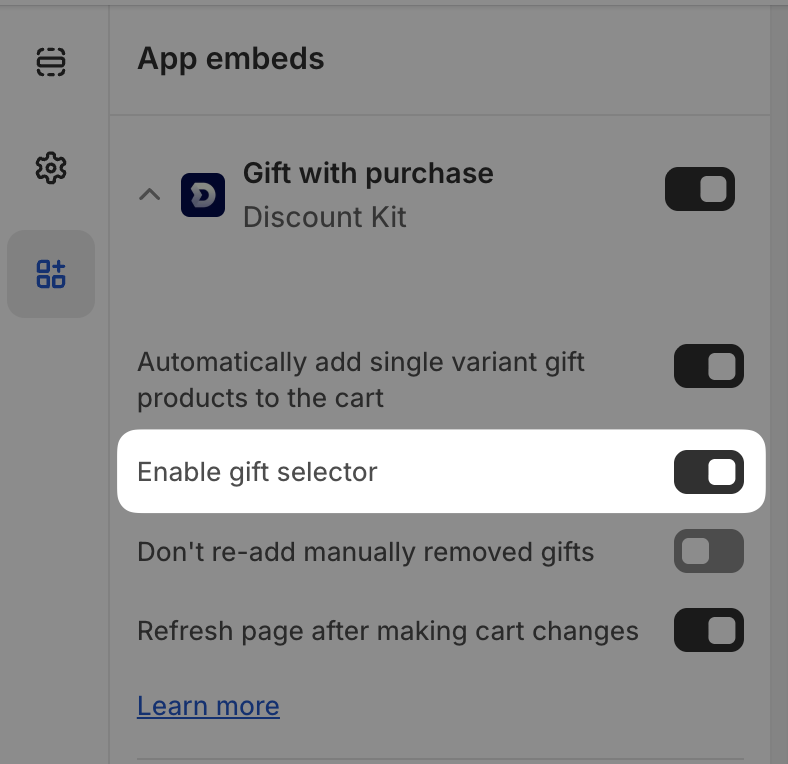
Section titled “Gift Selector”To let customers choose their gift when multiple variants are available, enable Enable gift selector in the Gift with purchase settings. You can customize the gift selector’s appearance using the styling options below this setting.
Discount Kit quickview as the gift selector (beta)
Section titled “Discount Kit quickview as the gift selector (beta)”With the Components app embed enabled, Use the Discount Kit quickview (beta) swaps the classic modal for the Gift Selector: one slot per gift, the tier’s products to pick from, and a single Add to cart for the lot. Two settings appear under it:
- Add default gifts when the quickview is closed — closing without finishing keeps what the shopper picked and adds the first available option for the rest.
- Show a “Change gifts” button in the cart — a button under the checkout button, whenever
a claimed gift has a choice, that reopens the quickview to swap gifts. Its text and style
(match the theme’s checkout button, or a Discount Kit button in your brand colours) are
settings, and developers can place their own
<dkl-change-gifts>trigger anywhere in the cart.
The details, the styling tokens and the developer hooks are on the Gift Selector pages.
Gifts in checkout (Shopify Plus)
Section titled “Gifts in checkout (Shopify Plus)”Discount Kit adds and removes gifts in the cart, but a cart can change after that. A discount code entered in checkout can cost a gift its discount: the code doesn’t combine with the gift’s discount and Shopify applies the code instead. And a customer who goes straight to checkout, with a Buy it now button for example, never has the gift added.
The Gift with purchase checkout block does both jobs in checkout. It follows the same rules as the cart, and it shows nothing to customers, so where you place it doesn’t matter.
To add it, open Settings > Checkout, select Customize for your checkout, add an app block and choose Gift with purchase from Discount Kit. Then turn on what you want it to do. Both settings start off, and the block does nothing until you turn one on:
- Add gifts automatically adds a gift the customer has earned when it isn’t in the order yet.
- Remove gifts automatically removes a gift that its discount no longer makes free. When only some units of a gift line lose their discount, only those units are removed.
The block works on gifts from this discount type and from tiered rewards. Some things it can’t do in checkout:
- A choice of gifts isn’t added. A gift is added when its tier gives one product with one variant. Checkout has no gift selector yet.
- A discount code’s gift is added once the customer has entered the code, for a discount whose selection strategy is Only products added via storefront or checkout widgets. With the other strategy Shopify rejects the code before the gift can be added. Only the discount’s own code counts, not codes generated for it in bulk.
- Discounts for tagged customers, and discounts in test mode, aren’t added. Checkout doesn’t tell apps a customer’s tags. Their gifts are still removed when they lose their discount.
- Spend thresholds are only checked in your store’s currency, unless the discount sets its amounts in the customer’s currency. Quantity thresholds work in every currency.
- A gift the customer removed in the cart comes back when gifts are added automatically, because checkout can’t see that they removed it.
- A gift that a discount code cost its discount isn’t added again until the customer’s discount codes change.
- Checkout blocks need Shopify Plus.
- Shopify doesn’t let apps change the order in accelerated checkouts such as Apple Pay and Google Pay, so the order stays as it is there.
Custom Integration
Section titled “Custom Integration”For developers building custom gift experiences, Discount Kit dispatches a browser event containing gift adjustment data:
Event Name: discount_kit:gift_adjustments
This event provides a list of gift products to add to, and cart lines to remove from, the cart as a result of changes to the cart.
Event Structure:
event.detail carries add, one entry per tier that still needs gifts, and remove, the
gift lines to take out:
{ add: Array<{ discountId: string discountTitle: string giftMarker: string // the `_dk_gift` value this tier's gift lines need discountTier: number // 0-based: the tier this entry is for quantity: number // how many gift units the tier still needs options: Array<{ // the products the gift can be id: number handle: string image: string | null options: unknown // the product's options_with_values priceRange: { min: number; max: number } // major units (e.g. 12.5) title: string anyVariant: boolean // true when any variant qualifies variants: Array<{ // the variants that qualify available: boolean id: number title: string image: string | null options: string[] price: number // cents }> }> }> remove: { [lineKey: string]: number // the quantity each gift line keeps: 0 takes it out }}Important: Gift lines need one line item property, which is how the discount function and the embed recognise them:
_dk_gift: the add’sgiftMarker— the discount title for a gift with purchase, the discount’s own id for a tiered rewards gift offer
Don’t add a property for the tier. One discount’s gifts of the same variant share a cart
line whatever tiers they fill, so a customer who earns the same gift twice sees one line of
two. Lines that still carry the _dk_gift_tier property earlier code wrote keep working, on
lines of their own.
add also covers the gift offers of tiered rewards discounts; they’re added and removed
exactly like gift with purchase gifts. remove gives every gift line that has to change and
the quantity it keeps: 0 for a line whose discount is no longer active, fewer units for a
line that holds a gift for a tier the cart no longer reaches.
Example Usage:
document.addEventListener('discount_kit:gift_adjustments', async (event) => {  const { add, remove } = event.detail
  // Remove gifts that no longer apply  if (Object.keys(remove).length > 0) {    await fetch('/cart/update.js', {      method: 'POST',      headers: { 'Content-Type': 'application/json' },      body: JSON.stringify({ updates: remove }),    })  }
  // Add each tier's gift — here, the first available variant of its first product  const items = add.flatMap((tier) => {    const variant = tier.options[0]?.variants.find((v) => v.available)    if (!variant) return []    return [      {        id: variant.id,        quantity: tier.quantity,        properties: { _dk_gift: tier.giftMarker },      },    ]  })  if (items.length > 0) {    await fetch('/cart/add.js', {      method: 'POST',      headers: { 'Content-Type': 'application/json' },      body: JSON.stringify({ items }),    })  }})